
Import a menu with AI
Upload a photo or a file of the menu you already have, and Menuzi builds it for you: sections, items and prices.
Where to find it:
- Sidebar
- Menus
- AI import
Upload your menu
- Tap Menus in the sidebar, then AI import.
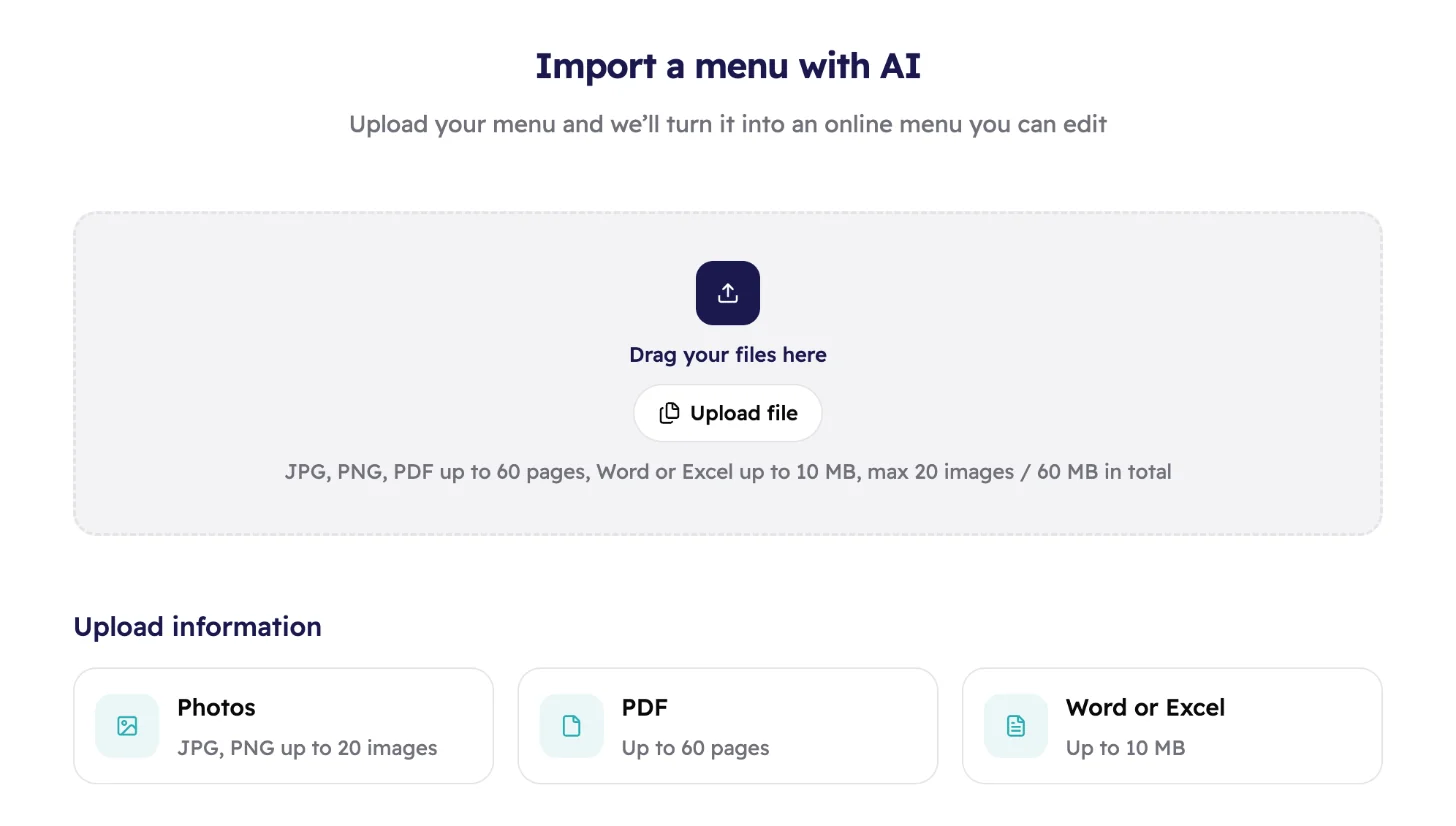
- Tap Upload file and choose your menu. On a phone or tablet, Use camera takes a photo of each page instead.
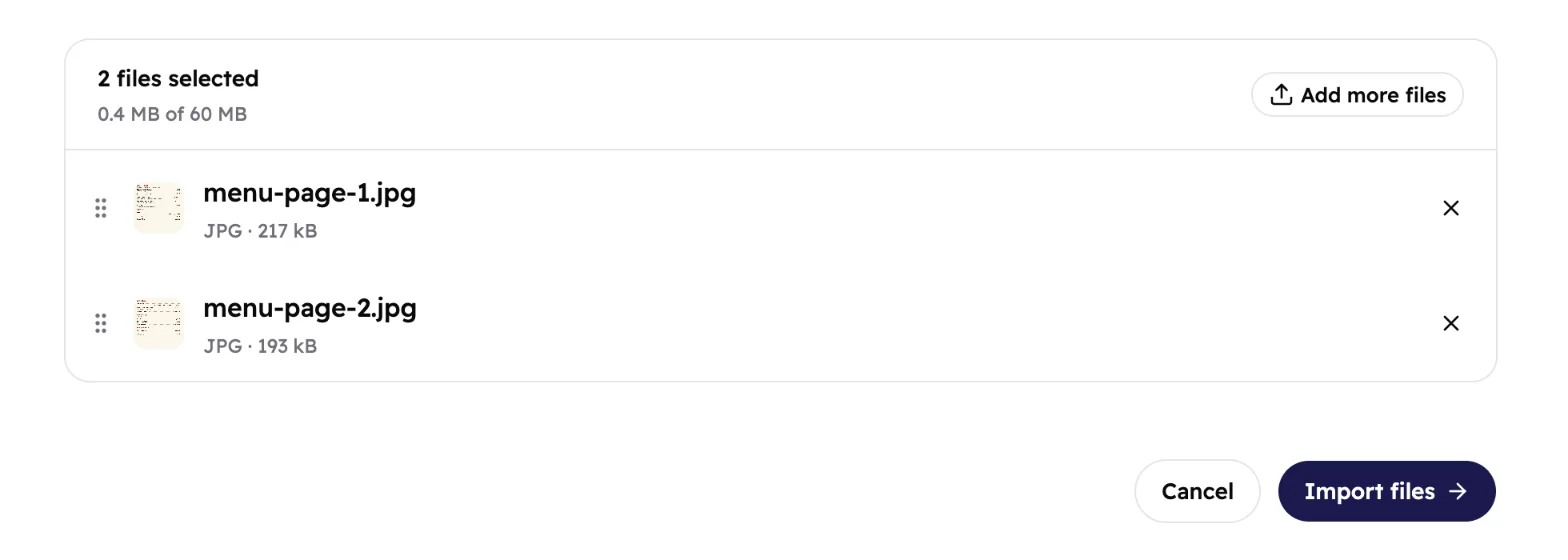
- Check the list, and put the pages in the order of your menu.
- Tap Import files.
 12
- Upload file opens your files. You can also drag them onto this box.
- The files Menuzi can read.
 1234
- Drag a file up or down to change the order of the pages.
- Removes the file.
- Add more files adds another page.
- Import files starts the import.
You land back on Menus, where a card says Importing... while Menuzi reads your menu. When it's done, the card turns into your new menu, tagged AI imported.
Which files work
- Photos: JPG or PNG, up to 20 of them.
- A PDF, up to 60 pages.
- A Word or Excel file, up to 10 MB.
- Photos or one document at a time, never both, and up to 60 MB in total.
Check your new menu
Your new menu is Offline, so guests can't see it yet. Tap Manage to open it in Menu Studio.
Menuzi brings in your sections, items, descriptions and prices, in the languages printed on your menu. An item with several sizes comes in with a price for each size.
Read through it in Craft and fix anything that came out wrong. Photos don't come in with the import, so add them next: see Item photos.
Good to know
A clear photo imports best. Shoot each page straight on, in good light, with all the text in the
picture.
Every imported menu is called "Menu". To rename it, tap ⋯ on its card, then Edit menu information.
You don't have to wait. Carry on working, then come back to Menus: your menu shows up when it's ready.
If the card says Failed, tap Try again and upload a clearer photo or another file, or tap Dismiss to clear the card.