
Menu Studio
Build your menu, design it with a live preview, and put it in front of guests, in five steps.
- Sidebar
- Menus
Five steps, one menu
Every menu goes through the same five steps. Go through them in order the first time. After that, jump back to any step whenever you need to change something.
-
1 Craft
What's on your menu: sections, items and prices.
-
2 Design
How it looks: template, logo, fonts and colors.
-
3 SEO
How it shows up on Google and other search engines, and when you share its link on WhatsApp, Facebook and other apps.
-
4 Review
Menuzi checks for missing prices, photos and descriptions before you go live.
-
5 Publish
Your menu goes live, with its own link and QR code for your tables.
Each step has its own article: Craft, Design, SEO, Review and Publish.
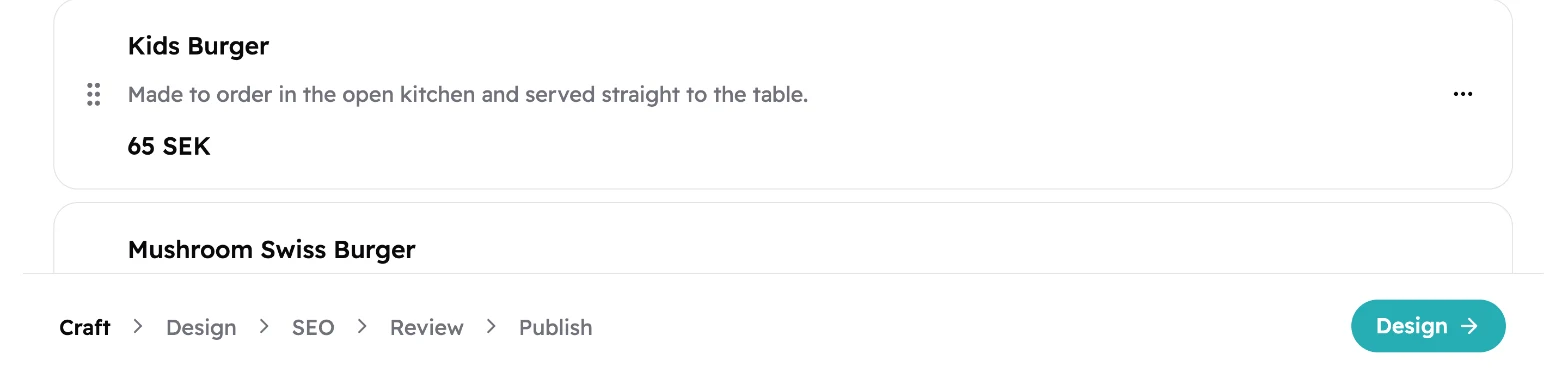
The steps sit at the bottom of every Menu Studio screen. Tap a step to jump to it, or tap the button on the right to go to the next one.
 12
12- The five steps. The one you're on is in bold.
- The next step. Here it's Design. It stays greyed out until your menu has at least one item guests can see.
What your guests see
Guests see your menu as it was the last time you published it. The changes you make in Menu Studio are saved, but guests don't see them until you publish again. So you can fix a price or try a new look in the middle of service, and guests only see it when you're ready.
In Menu Studio
Awaiting RepublishYou raised the price of the Double Cheese Burger.
- Double Cheese Burger 125 SEK
- Triple Cheese Burger 135 SEK
- Kids Burger 65 SEK
On your guests' phones
Still the old price, until you publish.
- Double Cheese Burger 120 SEK
- Triple Cheese Burger 135 SEK
- Kids Burger 65 SEK
Every menu shows one of three statuses:
- Offline: not published yet. Guests can't open it.
- Live: guests see your latest version.
- Awaiting Republish: live, but you've made changes since you last published. Guests still see the older version until you tap Publish Changes on the Publish step.
Your menus
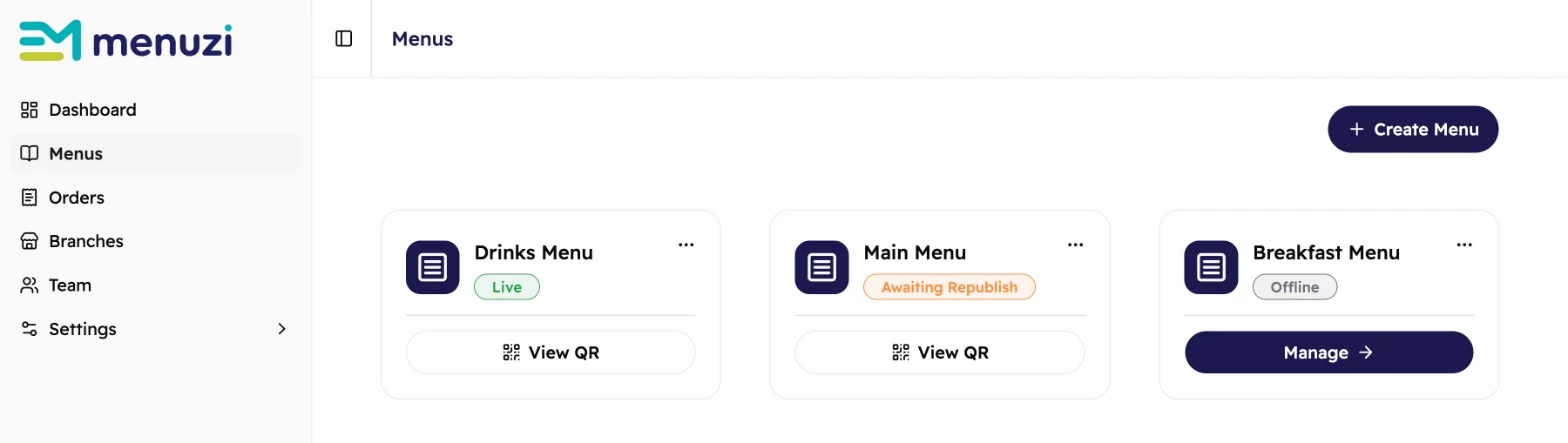
Tap Menus in the sidebar to see all your menus. Live menus come first, then menus awaiting republish, then offline ones.
 1234
1234- Create Menu starts a new menu. You choose its languages and give it a name.
- The menu's status.
- View QR opens a live menu's link and QR code, ready to share or print.
- Manage opens an offline menu in Menu Studio. To open a live menu, tap its name.
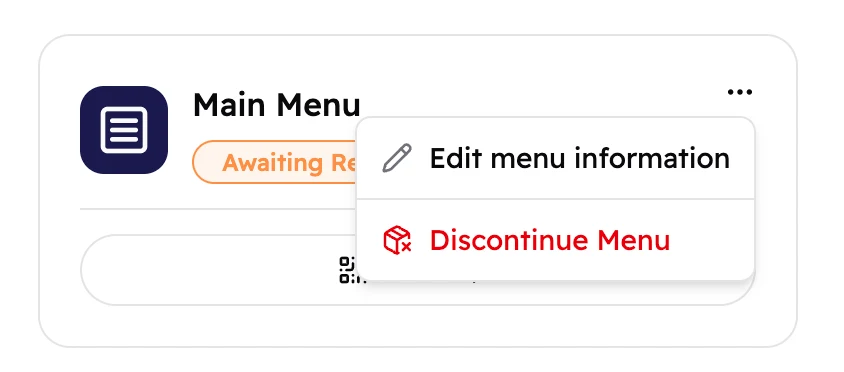
Tap ⋯ on a menu for two more options:
 12
12- Edit menu information changes the menu's name and its languages.
- Discontinue Menu removes the menu from your list. You can't undo this.
Locks and plans
Some buttons show a small icon:
- A padlock means your role doesn't include this. Ask the account's Owner or an Admin to do it, or to give you the role.
- A crown means your plan doesn't include this yet.
Each step has its own role, so different people on your team can take care of different steps: Menu Crafter for Craft, Menu Designer for Design, SEO Specialist for SEO and Menu Publisher for Publish. The Owner and Admin can do every step. See Team for every role.
Inviting your team and giving them roles comes with Menus+.
In these articles, a badge like Menus Lite next to a feature shows the plan it needs. Tap the badge to compare plans. Features without a badge come with every plan.