
Share your menu
Get your menu's link and QR code onto your tables, your social media and your Google Business Profile.
Where to find it:
- Menus
- View QR
You see your link and QR code right after you publish. To find them later, tap Menus in the sidebar, then View QR on a live menu.
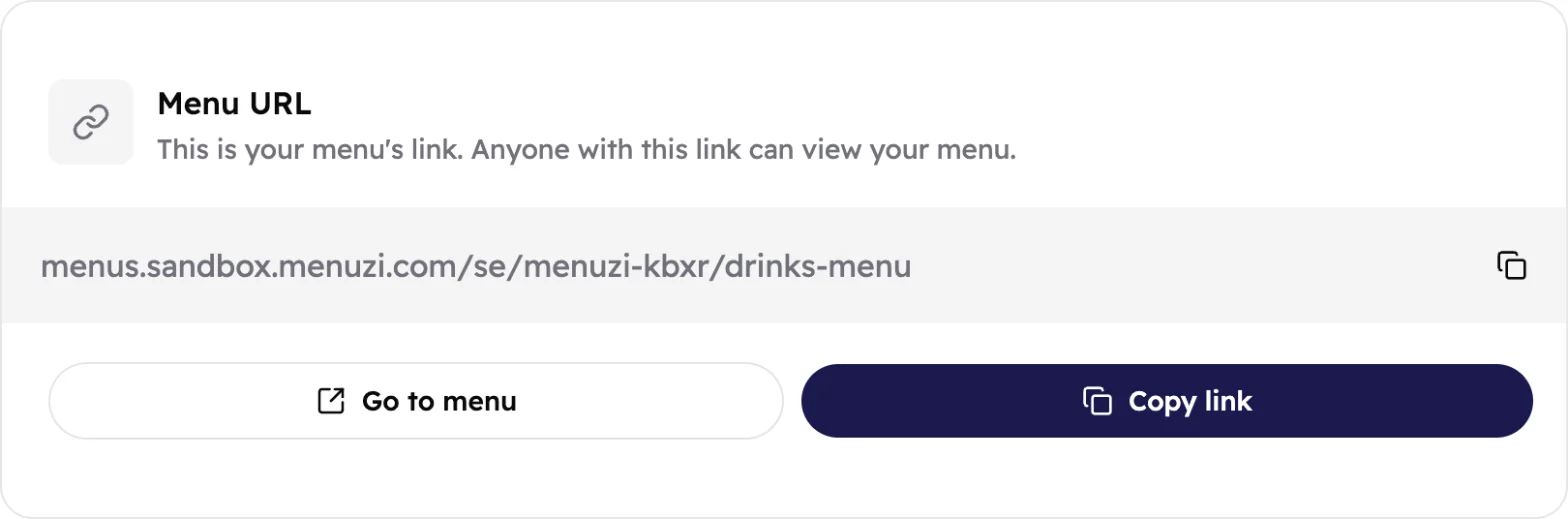
Your link
 1234
1234- Your menu's address.
- Go to menu opens it, as guests see it.
- Copy link copies it, ready to paste.
- This icon copies it too.
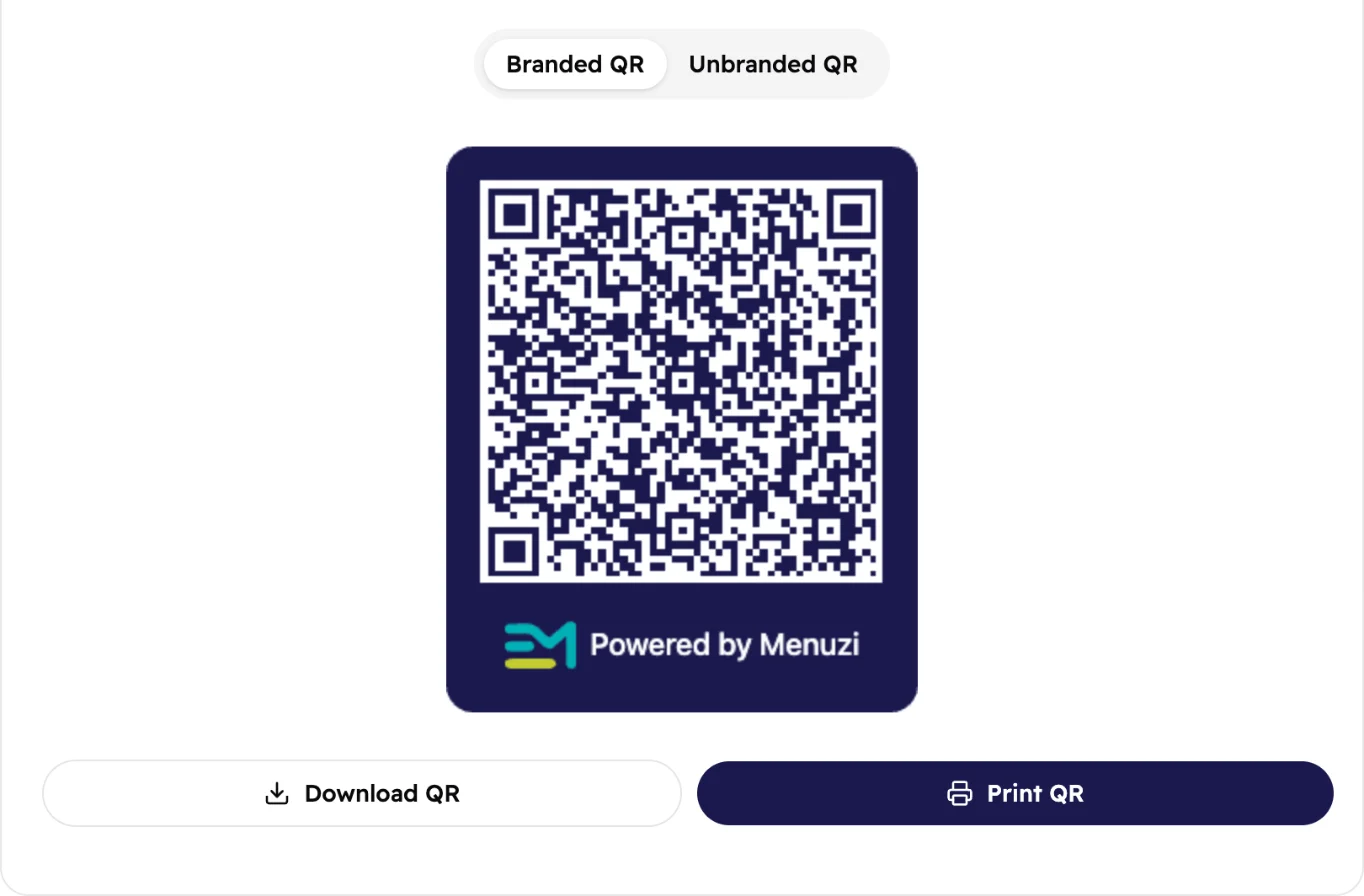
Your QR code
 1234
1234- Branded QR has a "Powered by Menuzi" frame. Unbranded QR Menus Lite is the plain code, ready for your own design.
- Guests point their phone camera at it to open your menu.
- Download QR saves it as a picture.
- Print QR prints it straight away.
Where to put them
- On every table: a table tent or sticker with the QR code.
- At the door and the counter, for guests who order to take away.
- On social media: paste the link in your Instagram or TikTok bio.
- On Google: add the link as the menu link of your Google Business Profile, so guests find it on Google Search and Maps.
- On WhatsApp: send the link when guests ask "what's on the menu?"
Good to know
Your link and QR code never change, even when you publish again. Print once, and guests always see
your latest menu.
Test it before you print: scan the code with your own phone and check the menu opens.
Make your link preview look good before you share it. See SEO.