
Item photos
Add a photo to each dish and drink. Photos sell, and guests see them right on the menu.
Where to find it:
- Design
- The preview
Add a photo
- Open Design.
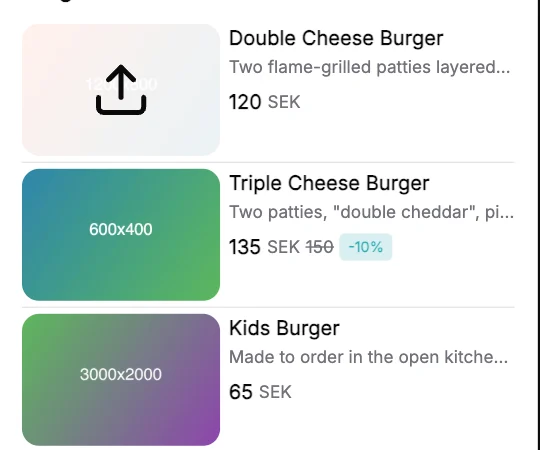
- In the preview, tap the item's photo, or the empty space where it goes.
- Choose a picture from your computer or phone.
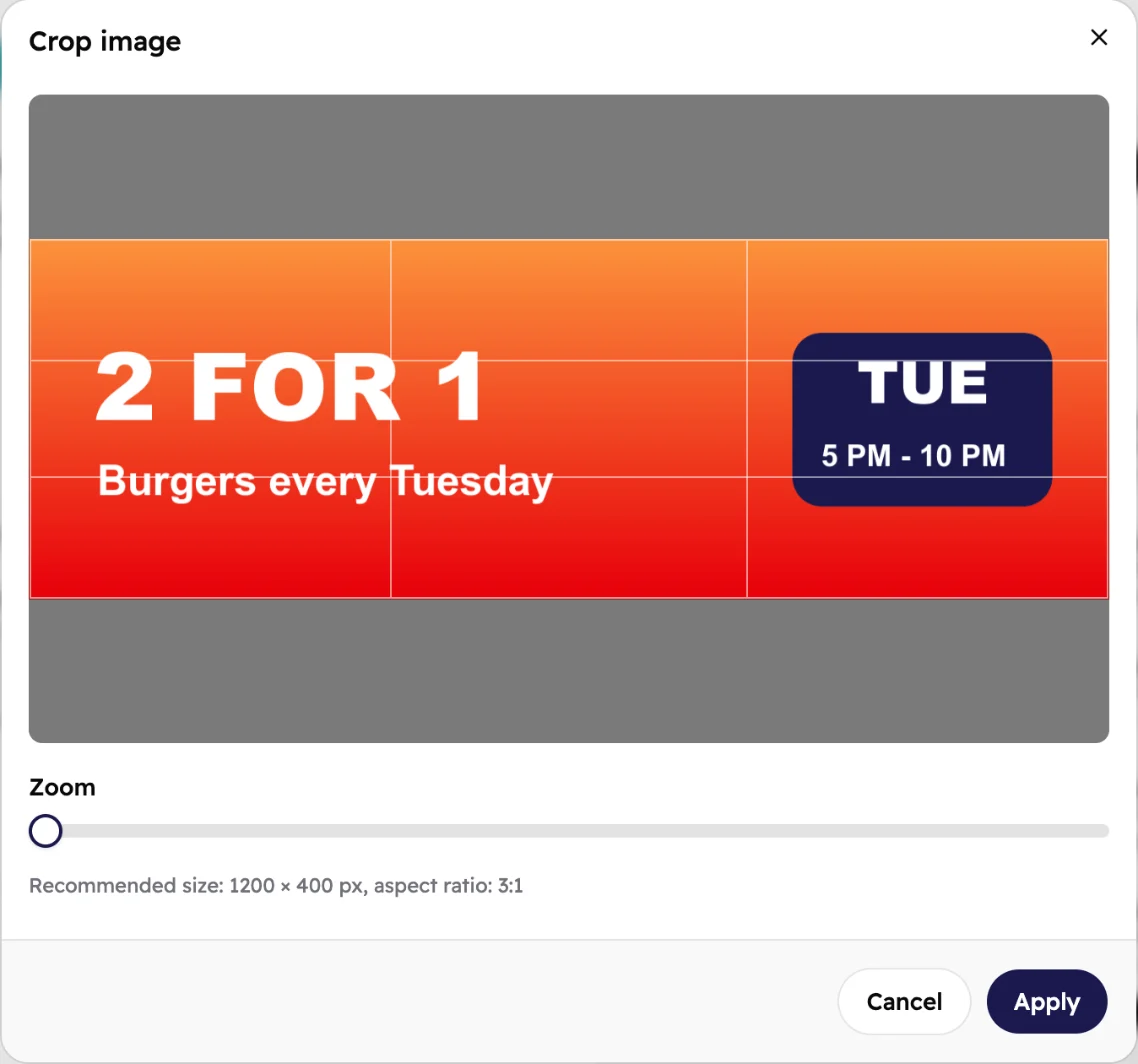
- Drag it to frame the dish, use Zoom to get closer, and tap Apply.
 1
1- Point at or tap a photo and an upload icon appears.
 123
123- The frame shows what guests will see. Drag the picture to move it.
- Zoom gets closer to the dish.
- Apply saves the photo.
Which photos work
- JPEG, PNG or WebP, up to 5 MB.
- At least 600 × 400 pixels. Item photos are cropped to a 3:2 landscape shape.
- Shoot in daylight, from slightly above, with the dish filling most of the frame.
Add photos from Review
The Review step lists every item without a photo. Tap Add Image next to one to add its photo there.
Good to know
Photos are saved the moment you tap Apply. Guests see them
after you publish again.
On the Classic template, Show Images hides all item photos.
Turn it back on if your photos don't show.
On the Gallery template, each section has its own square photo too. Tap it in the preview to add
one.