
Templates
Choose the layout guests scroll through. Your items, logo, fonts and colors come along when you switch.
Where to find it:
- Design
- Templates
Templates
The same Main Menu in each template:
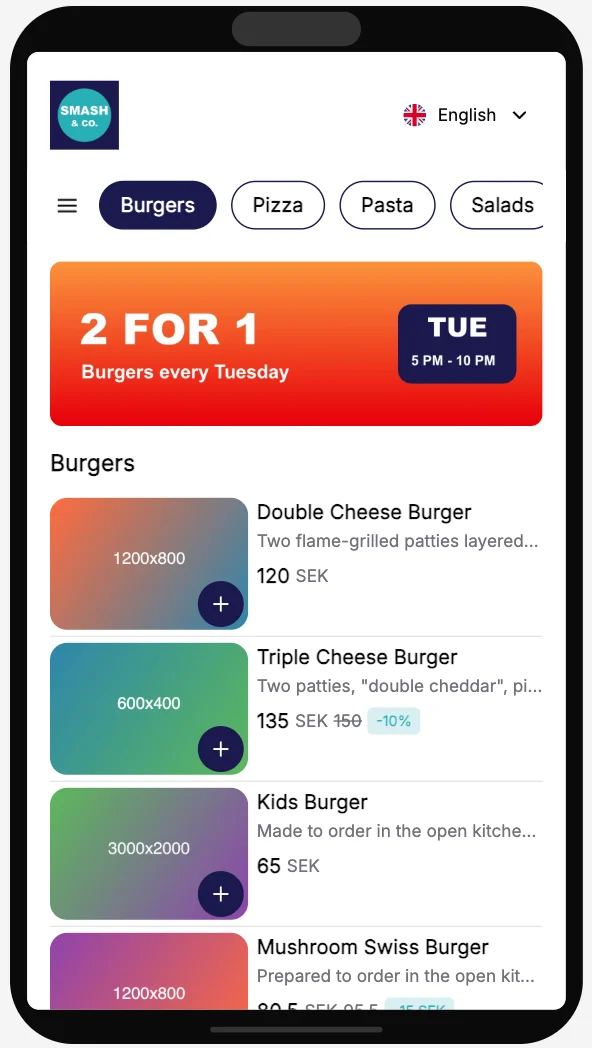
- Classic lists your items with their photos. Its switch, Show Images, hides the photos if you'd rather show a text-only menu.
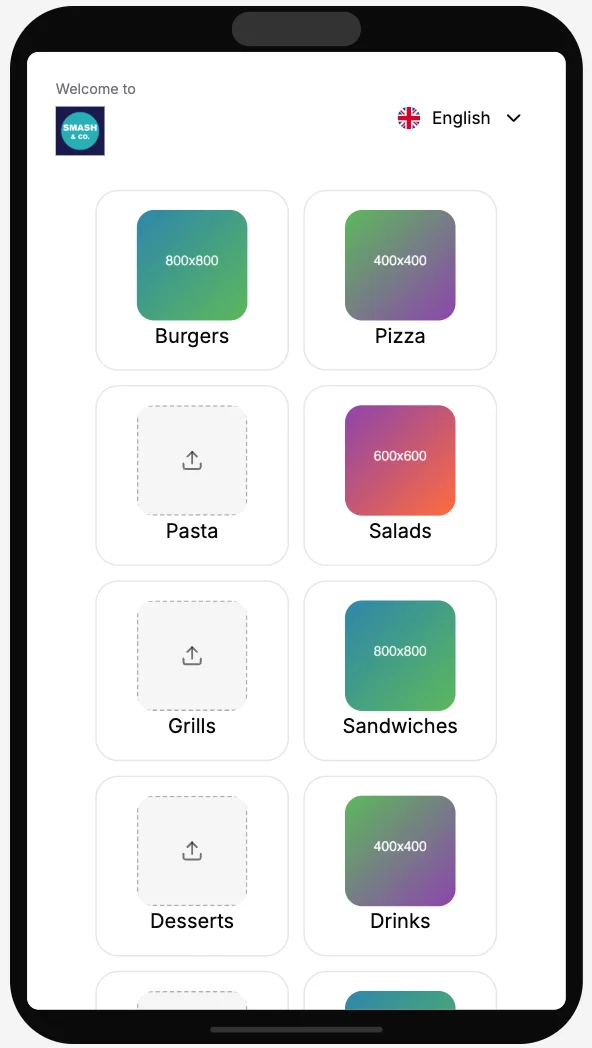
- Gallery opens on a page of your sections, each with its own square photo. Its switch, Enable sections page, turns that first page on or off.
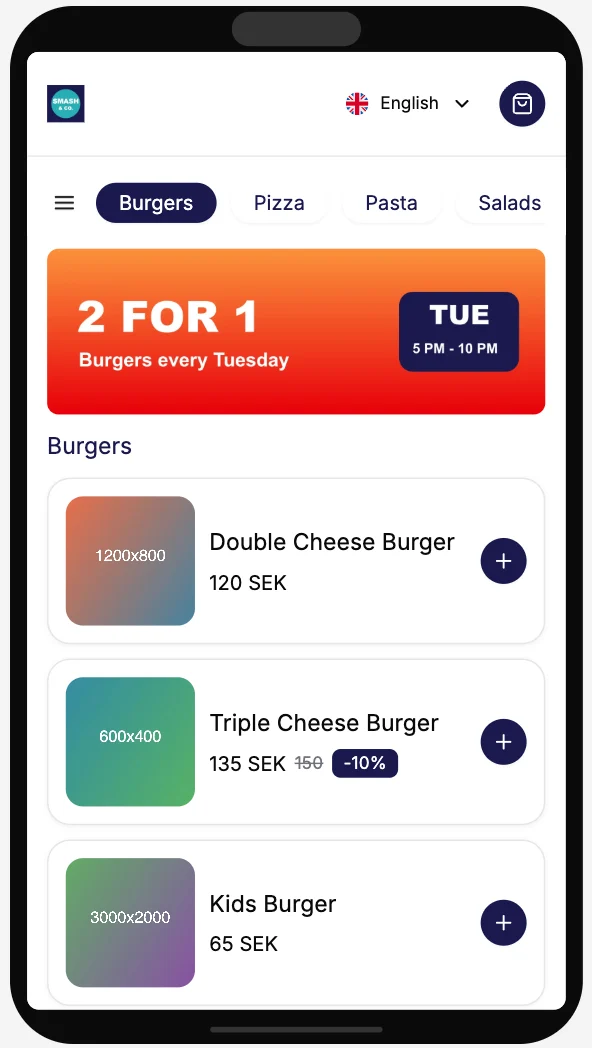
- Magazine puts each item on its own card, next to its photo.
Switch template
- In Design, tap Templates.
- Pick a template. The preview changes straight away.
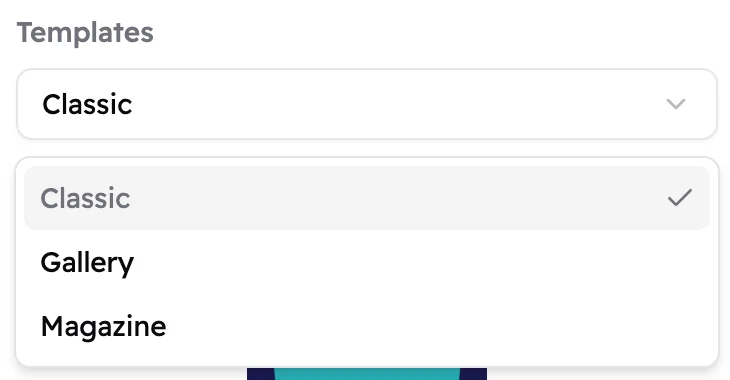 1
1- The tick shows the template your menu uses now.
Good to know
Switching template saves your design straight away. Guests see the new layout after you publish.
Your fonts and colors come along when you switch. Each template has its own list of colors, so
check them once in Design.
On Gallery, tap a section's photo in the preview to add one. Section photos are square, at least
400 × 400 pixels.