
Item labels
Menus+Mark a dish as halal, vegan or a best seller, and list its allergens, so guests see what makes it special and what's in it.
Where to find it:
- Craft
- An item
- Item labels
Add labels to an item
- In Craft, tap the item, or tap Add Item for a new one.
- Scroll down to Item labels.
- Tap a group: Highlights, Diet, Allergens or Characteristics.
- Tap every label that fits the dish. Tap it again to take it off.
- Tap Create, or Submit if you're changing an item.
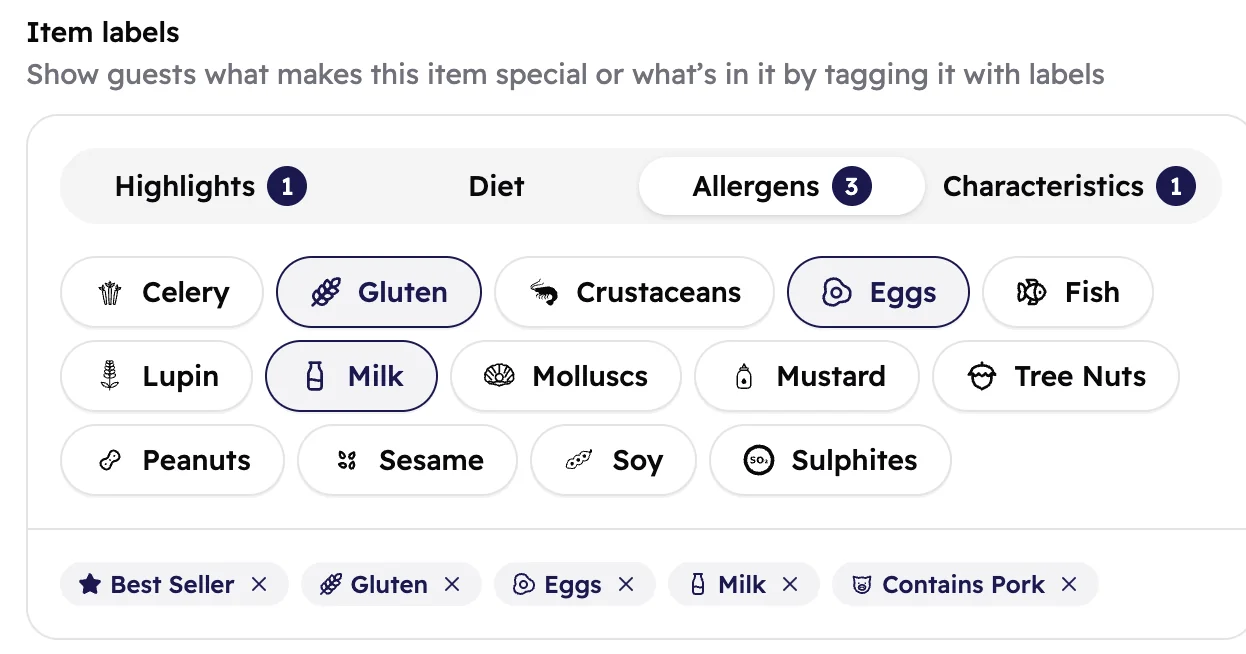 123
123- The groups. A number shows how many labels you picked in each.
- Tap a label to pick it. Picked labels have a dark outline.
- Everything you picked for this item. Tap × to remove one.
The labels
- Highlights: what makes the dish stand out, like Best Seller, New or Seasonal. One per item.
- Diet: who can eat it, like Halal, Vegan or Vegetarian. Pick only one of Vegan, Vegetarian and Pescatarian.
- Allergens: the common allergens, like Gluten, Milk or Peanuts.
- Characteristics: how hot it is, and things like Organic or Contains Pork. One spice level per item.
What guests see
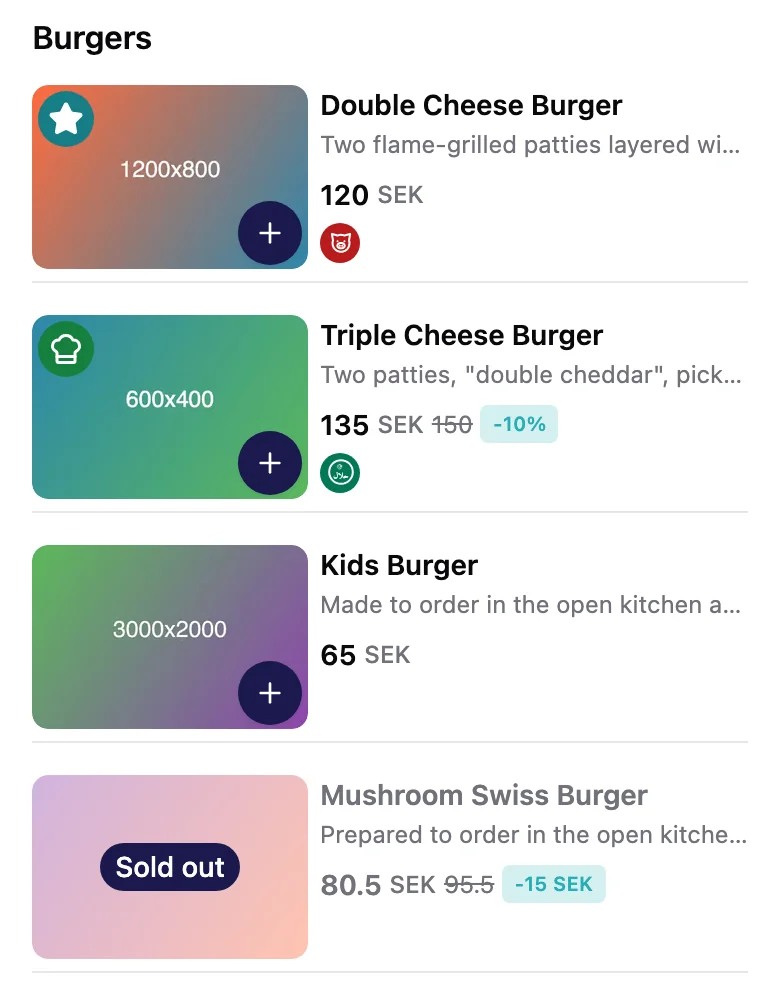
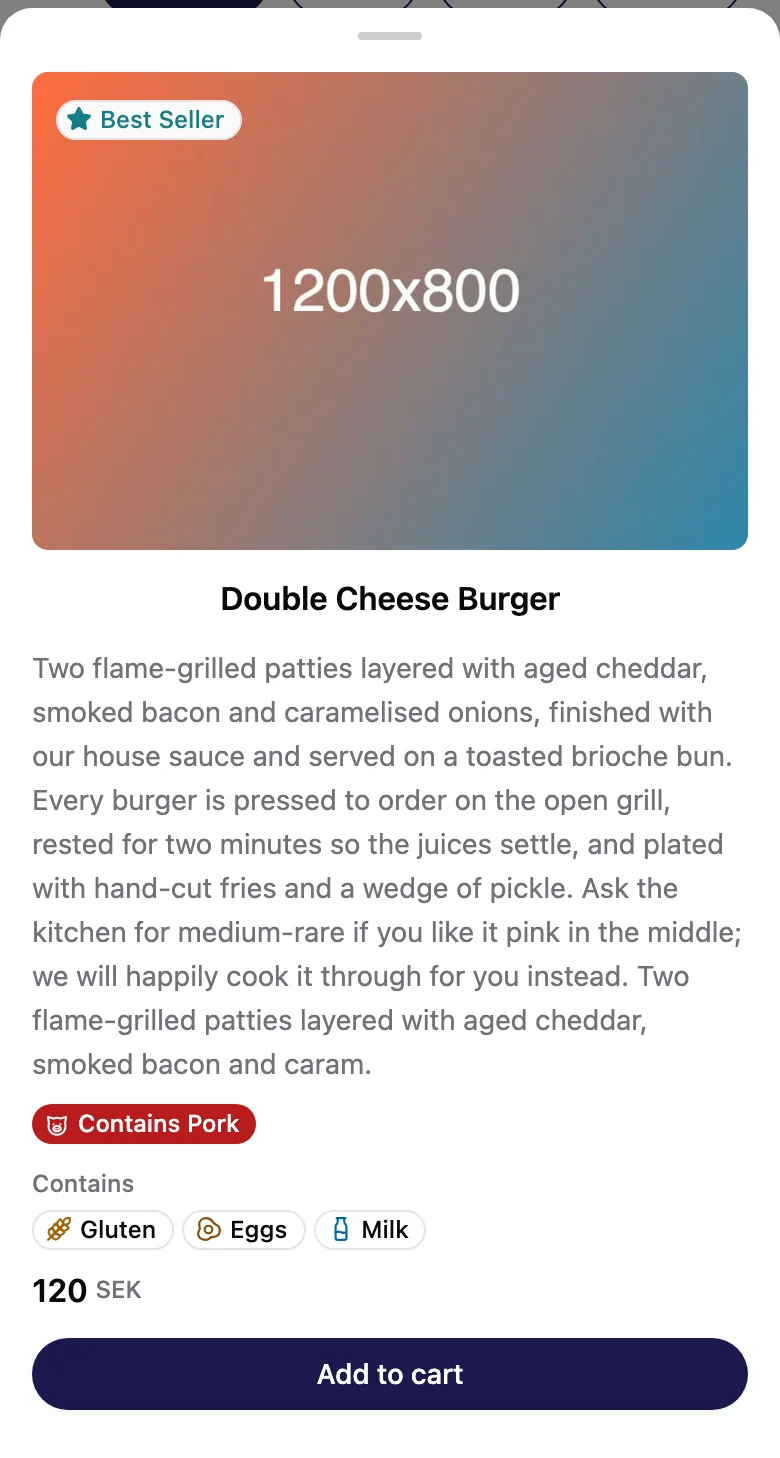
On the menu, each item shows its highlight and small icons for its diet and characteristics. When guests open the item, they see every label by name, with allergens under Contains.
Good to know
Guests see new labels after you publish again.
You pick labels from a list, so there's nothing to translate. Pick them once per item, in any
language.
Changed a recipe? Check its allergens with your kitchen and update the labels the same day.