
Publish
Put your menu online. Publishing gives it a link and a QR code; publishing again updates what guests see.
Where to find it:
- Menus
- Your menu
- Publish
Publish, then publish again
The first time, Publish puts your menu online at its own link. After that, every change you make waits in Menu Studio until you tap Publish Changes. Guests never see half-finished work. See What your guests see.
The screen
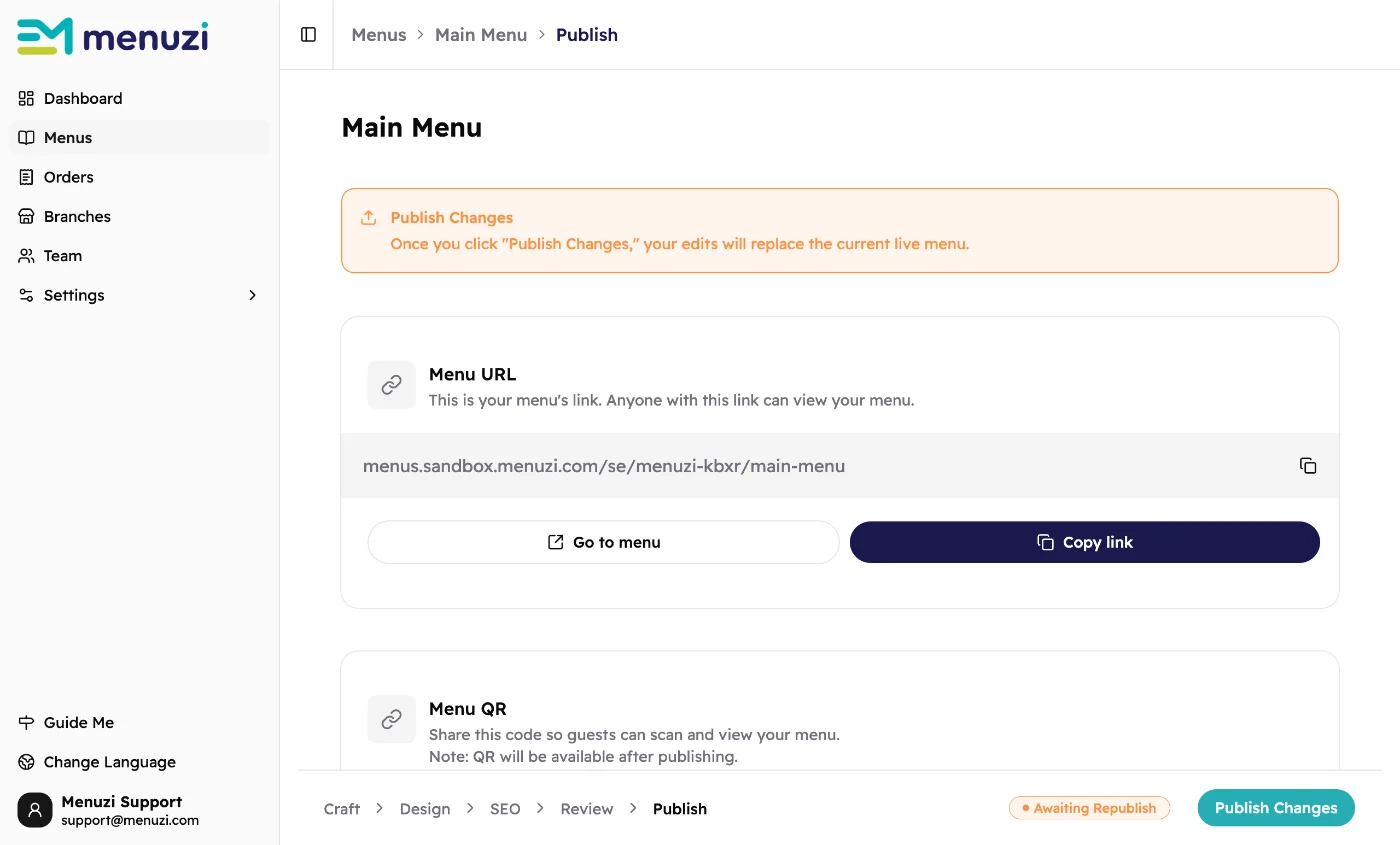 123456
- You have changes guests can't see yet.
- Menu URL: your menu's address. Anyone with it can open your menu.
- Go to menu opens the live menu, as guests see it.
- Copy link copies the address to paste anywhere.
- The menu's status.
- Publish Changes sends your changes live. On a menu that isn't live yet, this button says Publish.
Publish a menu
- Go to the Publish step, or tap it at the bottom of any Menu Studio screen.
- Tap Publish, or Publish Changes if the menu is already live.
- Wait a few seconds. When you see Your menu is live!, guests can open it.
Next, put the link and QR code where guests will find them. See Share your menu.
How many menus can be live
| Plan | Live menus at once |
|---|---|
| Free | 1 |
| Menus Lite | 2 |
| Menus+ Orders+ | No limit |
Publishing changes to a menu that's already live never counts as a new one.
Good to know
See Publishing failed!? Your changes are saved. Tap Try again.
Only the owner, an admin, or a team member with the Menu Publisher role can publish. If the button
shows a padlock, ask one of them.
Your QR code doesn't change when you publish again, so there's no need to reprint it.