
Craft
Add what you serve: sections like Burgers or Drinks, the items inside them, and their prices.
Where to find it:
- Menus
- Your menu
- Craft
Sections hold items
A menu is a set of sections, like Burgers, Pizza or Drinks. Guests tap through them at the top of your menu. Each section holds items: the dishes and drinks you serve, each with a name, a short description and a price.
Sections
- Burgers
- Pizza
- Salads
- Drinks
Items in Burgers
- Double Cheese Burger Two flame-grilled patties with aged cheddar. 120 SEK
- Mushroom Swiss Burger Sautéed mushrooms and Swiss cheese. 95 SEK
- Kids Burger Made to order and served straight to the table. 65 SEK
Everything you add here shows up in every look you pick later in Design.
The screen
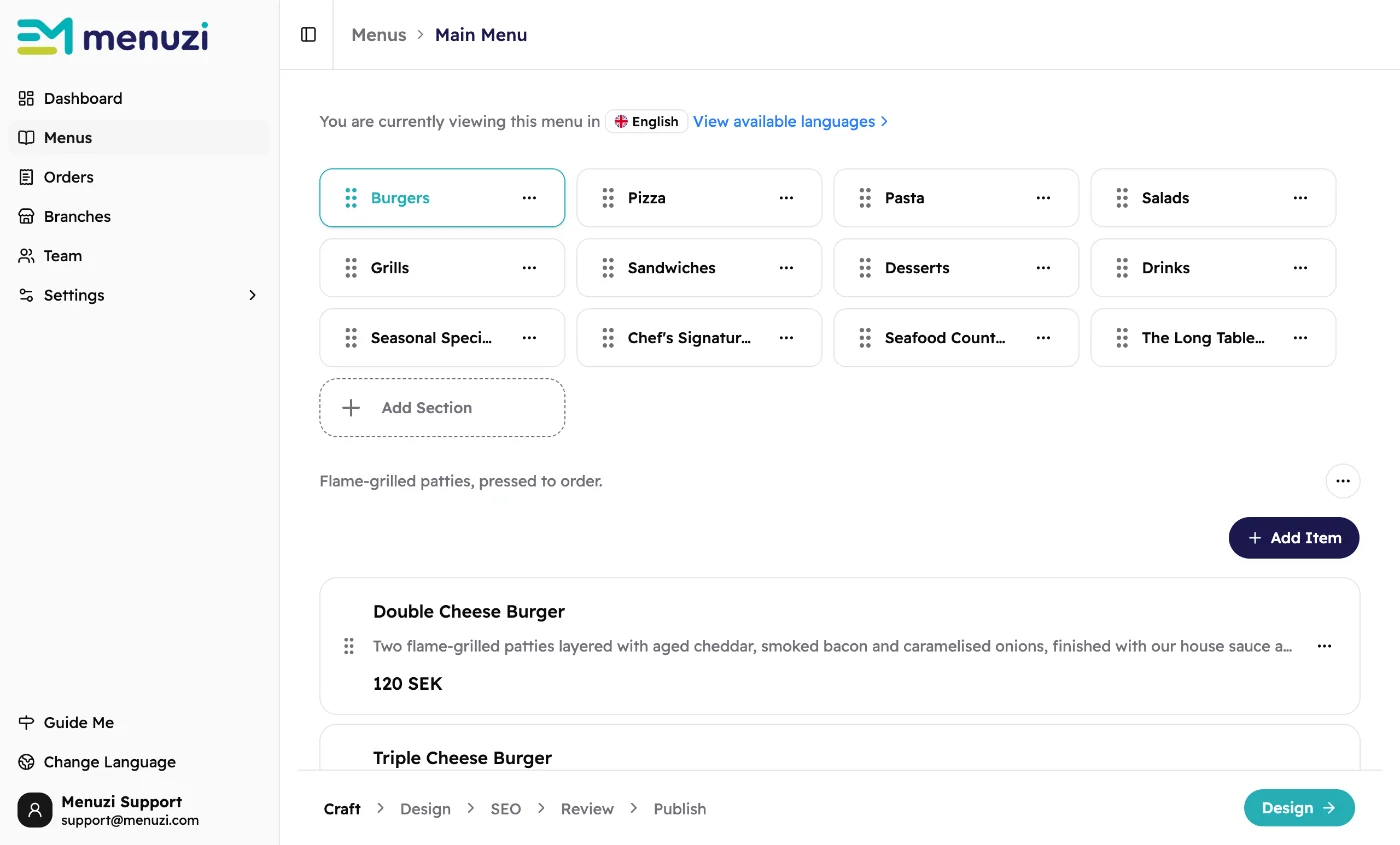 123456
- The language you're working in. Tap View available languages to switch. See Menu languages.
- A section. Tap it to see its items.
- Add Section adds a new section.
- Add Item adds an item to the section you've picked.
- An item. Tap it to change it.
- Design takes you to the next step once your menu has an item guests can see.
Add a section
- Tap Add Section.
- Type its Name, for example "Burgers". Add a Description if you like, such as "Flame-grilled, pressed to order."
- Tap Add.
Add an item
- Tap the section, then Add Item.
- Fill in the Title, a Description and the Price. No price yet? Leave it empty and add it later.
- Tap Create.
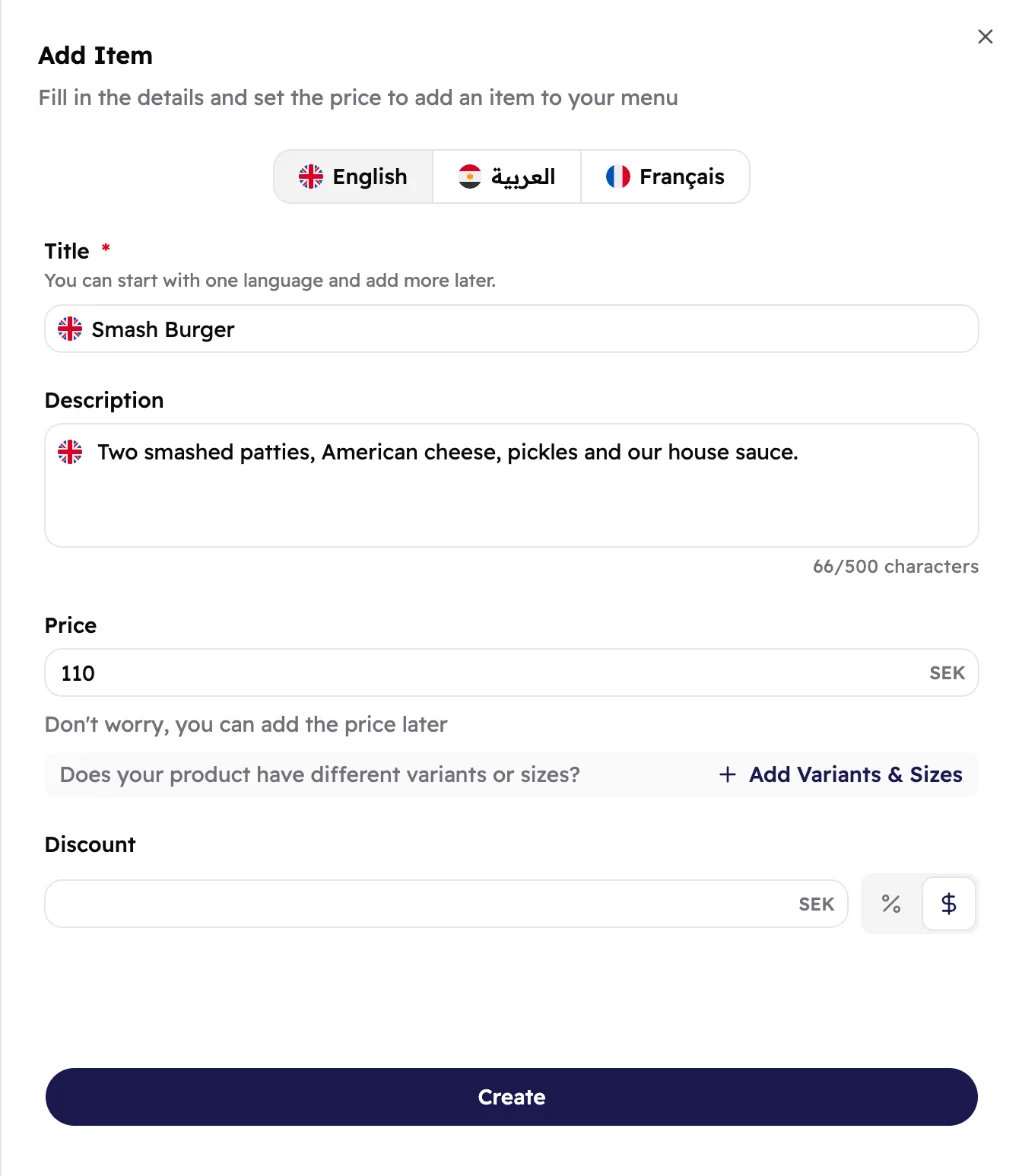 1234567
- One tab per menu language. Only shown when your menu has more than one.
- The item's name. It's the only thing you have to fill in.
- A short description, up to 500 characters.
- The price in your currency.
- Sell it in sizes, like Small, Medium and Large. See Sizes and variants.
- Put it on offer. See Offers and discounts.
- Saves the item.
Photos aren't added here. You add them in Design by tapping the item's photo. See Item photos.
Further down the same panel, use Item labels to mark a dish as
halal or vegan and list its allergens. See Item labels.
Change, hide or remove
Tap ⋯ on a section or an item:
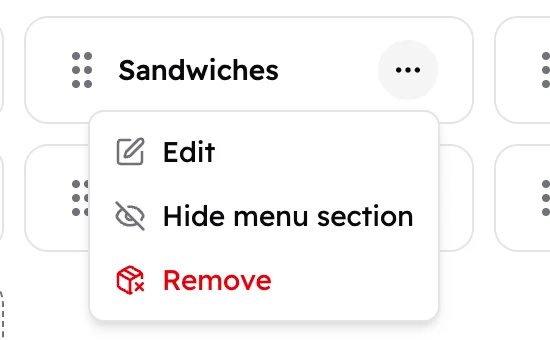 123
123- Edit changes the name or description.
- Hide menu section keeps the section and its items in Menu Studio, but guests won't see them after you publish. Use Unhide menu section to bring them back.
- Remove takes the section off your menu.
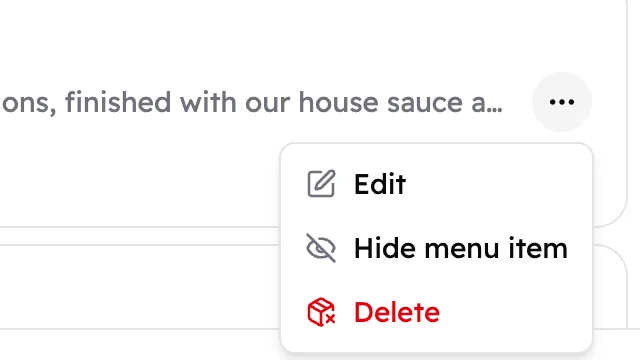 123
123- Edit opens the item, the same as tapping it.
- Hide menu item keeps the item but takes it off the menu guests see. Handy for seasonal dishes. Out of it for today only? See Mark items out of stock.
- Delete removes the item for good. You can't bring it back.
Change the order
Guests see sections and items in the same order you do. To move one, drag it by its dots (⠿): sections left and right, items up and down.
Good to know
Your changes are saved as you go, but guests see them only after you publish again. See Publish.
Hidden sections and items can't be moved. Unhide them first.
Not sure what's missing? The Review step lists items without a
price, a photo or a description.