
How guests order
Orders+See ordering through your guest's eyes, so your team knows what they see at the table.
Where to find it:
- Your live menu
- Your guest's phone
Ordering, step by step
Guests open your menu from the QR code on the table or from your link. When their branch takes orders, every dish with a price has a +.
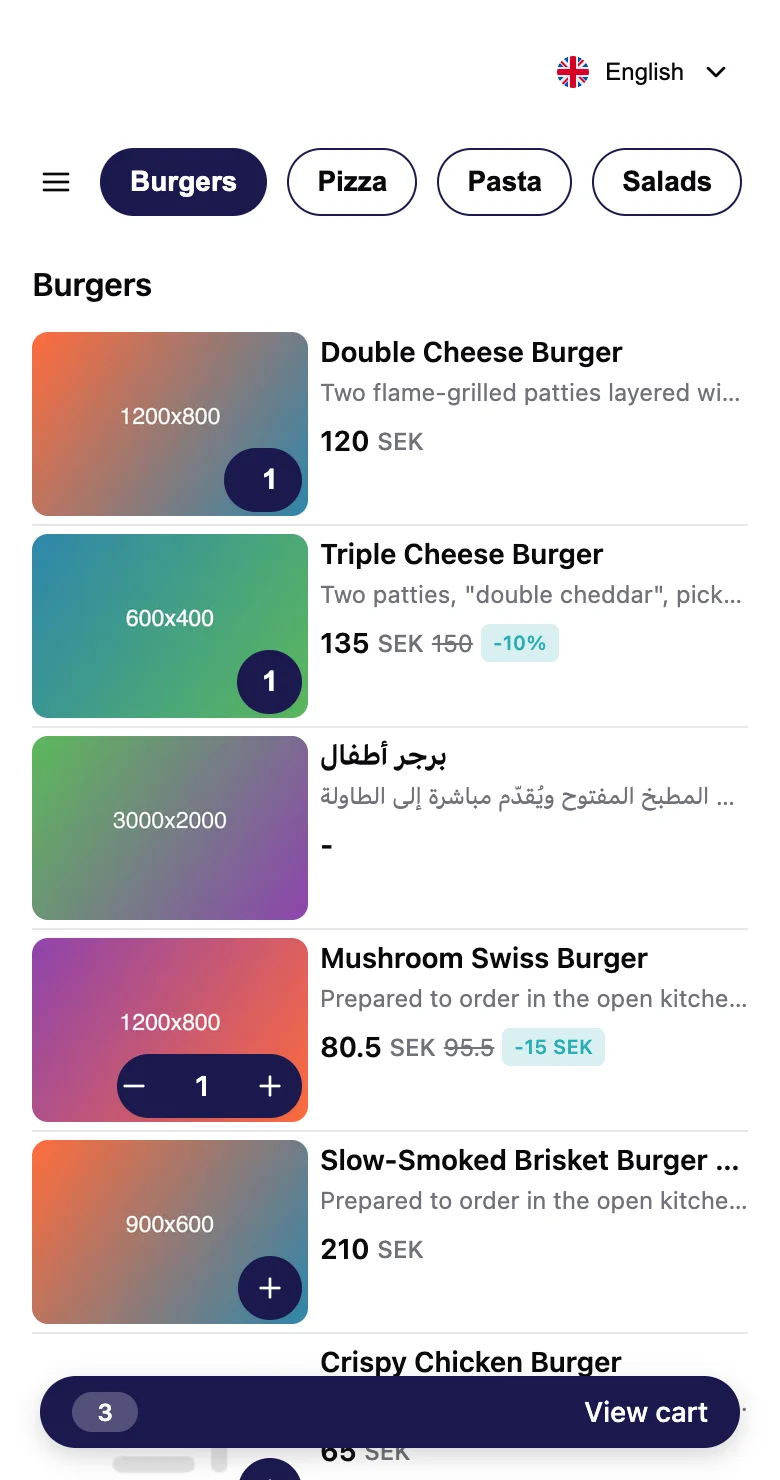
- They tap + on each dish they want, then View cart.
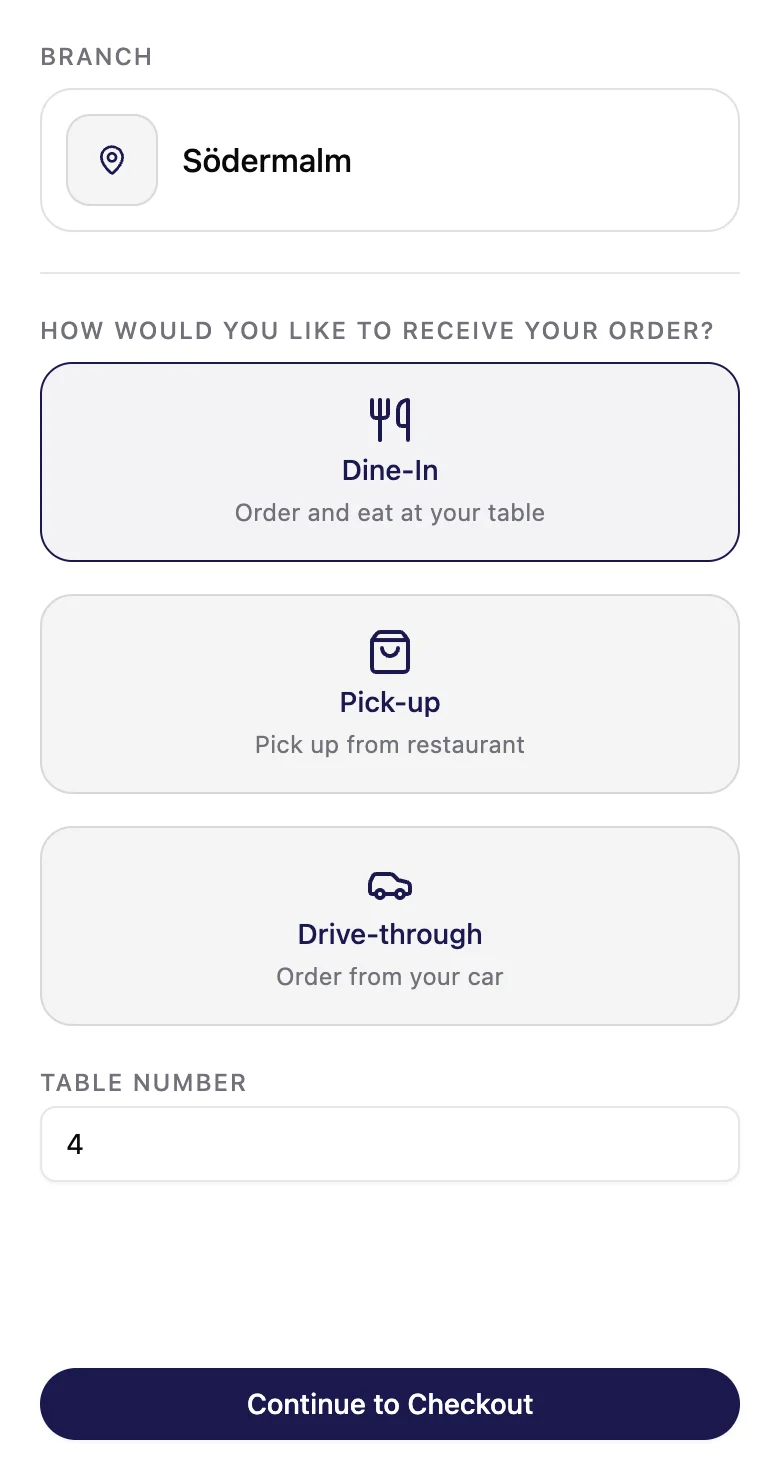
- Under How would you like to receive your order?, they pick how they get it. At a table, they type their table number. Then they tap Continue to Checkout.
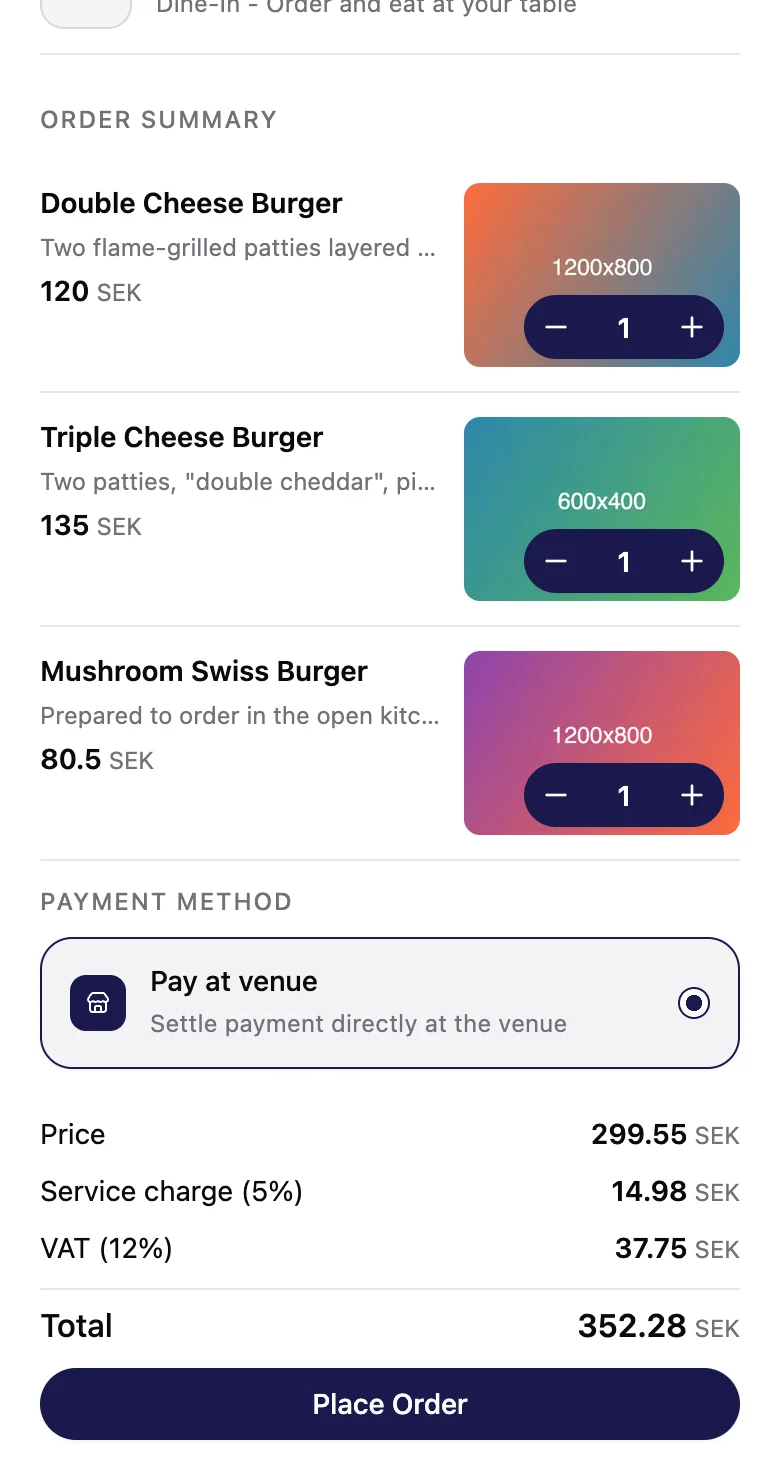
- They check the order and tap Place Order. They pay you at your place: the only payment method is Pay at venue.
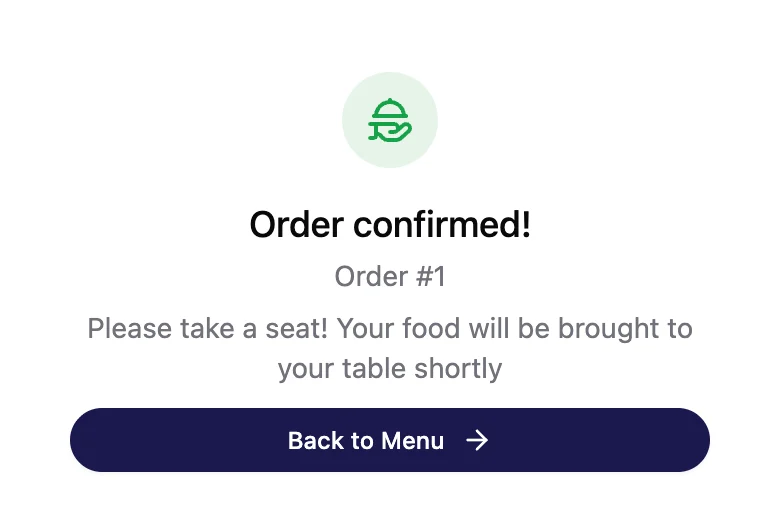
- They see Order confirmed! and their order number.
 12
12- The same number your team sees on the order.
- What happens next, for the way they chose.
After they order
The order lands in New on your Orders page, with the same number.
Order confirmed! means you've received the order. On your side it
stays New until someone taps Confirm.
The guest's screen doesn't change after that. Bring the food to the table number on the order, or call out the order number at the counter.
Good to know
Guests don't give a name or a phone number. Use the order number and the table number.
Is your menu live at more than one branch? Guests choose their branch as soon as they open it.
With one branch, Menuzi picks it for them. To choose a branch's menu, see Branches.
Ran out of a dish? Mark it out of stock at that branch. Guests see Sold out and can't order it. See Mark items out of stock.
Guests see your service charge and tax before they order. See Turn on ordering.
Try it yourself: scan your own QR code and place a small order. You can reject it straight away.