
Menu languages
Menus LiteWrite your menu in more than one language. Guests pick their language right on the menu.
- Menus
- ⋯
- Edit menu information
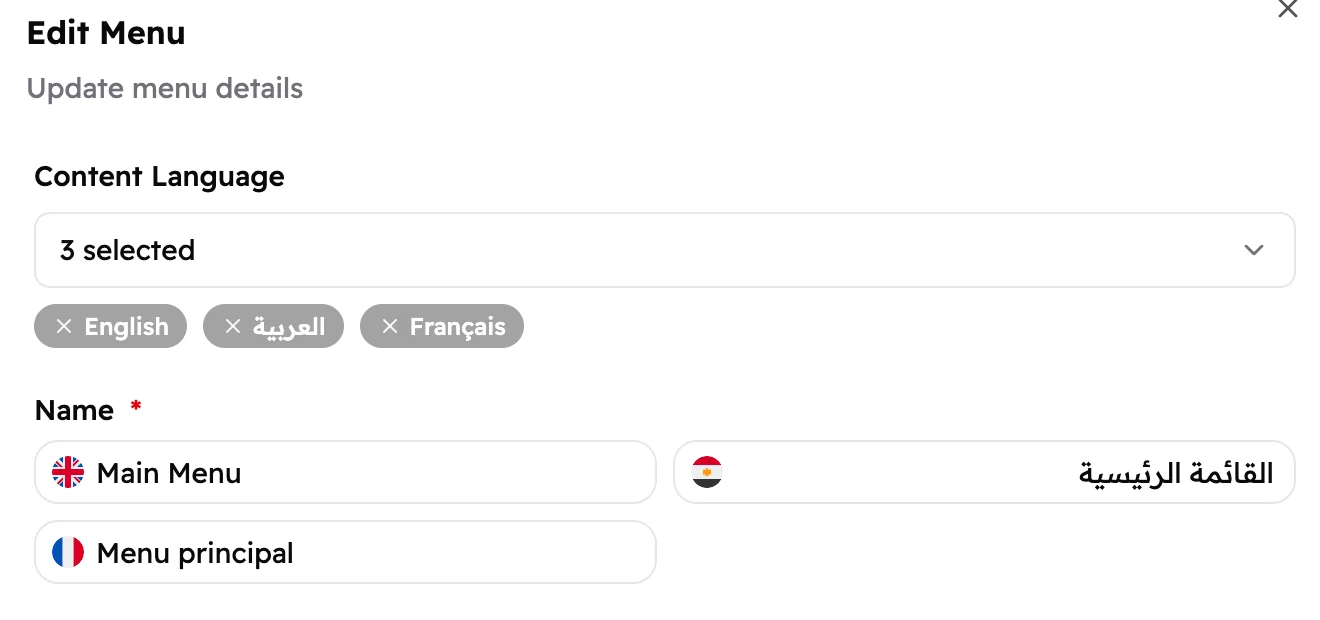
Every plan includes one menu language. Adding more needs Menus Lite or higher. Here, Main Menu is written in English, Arabic and French.
Choose the menu's languages
- Tap Menus in the sidebar, then ⋯ on the menu and Edit menu information.
- Under Content Language, pick the languages. The ones most used in your country are at the top.
- Give the menu a Name in each language.
- Tap Edit Menu.
 123
123- Opens the list of languages.
- The languages you've picked. Tap × to take one away.
- The menu's name, once per language.
You choose the languages when you create a menu too, with Create Menu.
Write each item in each language
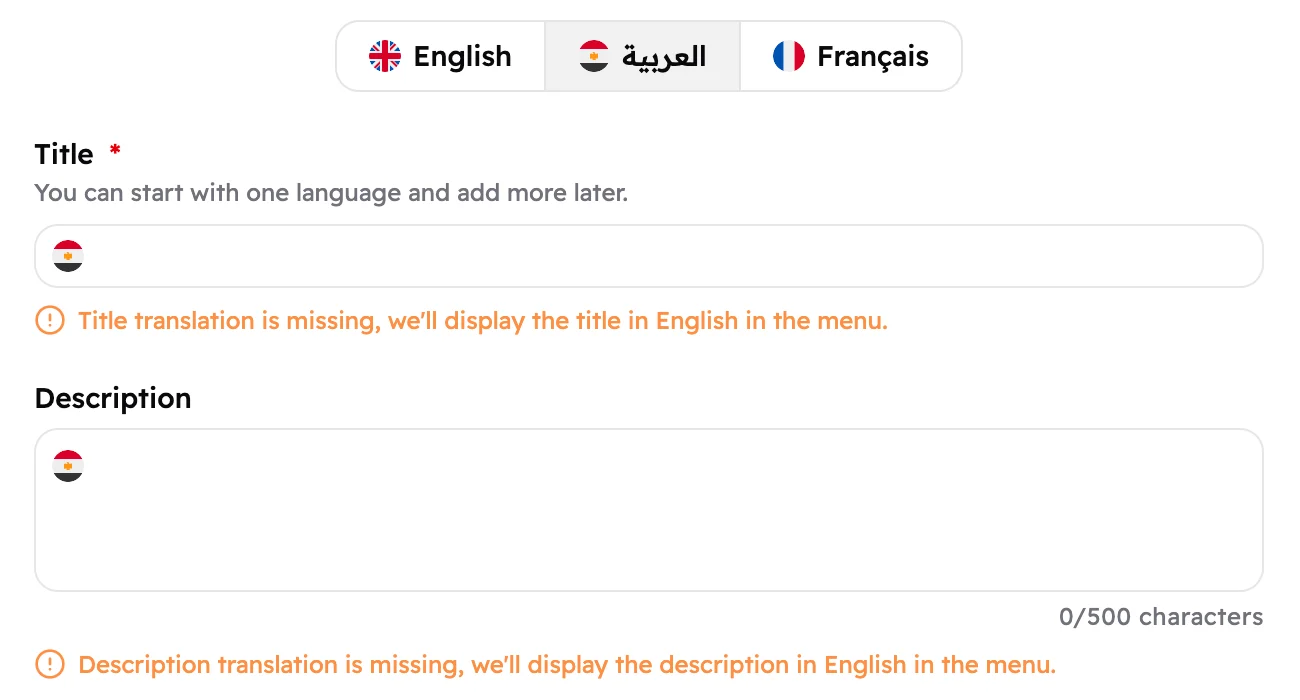
When you add or change an item, tabs at the top switch between your languages. Fill in the Title and Description in each one.
 12
12- One tab per language.
- An orange note means this language is still empty. Guests reading in it see the item in a language you did fill in.
Sections work the same way: the tabs are at the top of the panel when you add or change a section. In SEO, each card has its own tabs.
You can start with one language and add the others later. Prices are shared by all languages.
Work in another language
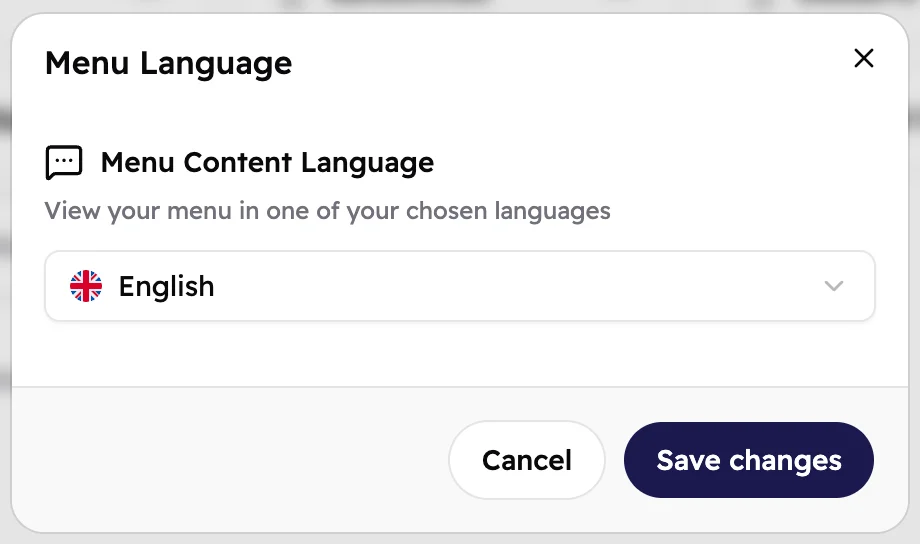
At the top of Craft, tap View available languages, pick a language and tap Save changes. Menu Studio then shows your menu in that language, in Craft and in the Design preview.
 12
12- The language to work in.
- Switches Menu Studio to it.
This only changes what you see. Guests always choose their own language on the menu.