
Orders
Orders+Every order guests place from your menu lands here. Your team moves it along, one tap at a time, from New to Completed.
- Sidebar
- Orders
The screen
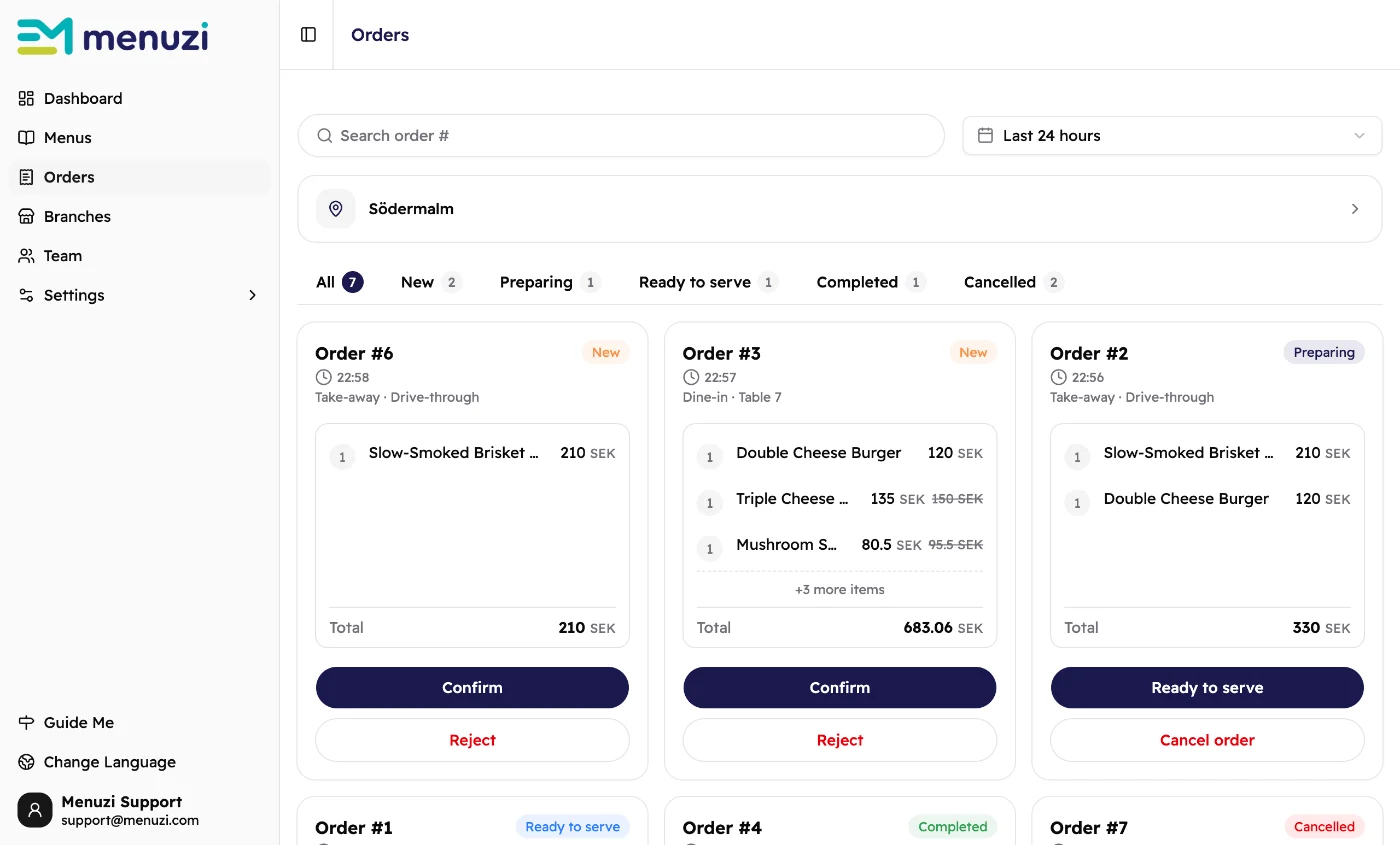 123456
- Find an order by its number.
- How far back to look.
- The branch you're looking at. Tap it to switch branch.
- One tab per station, with how many orders are in each.
- An order. The newest ones come first.
- The buttons for the next step.
One tab per station
Think of the tabs as stations along your service line. Each person keeps their tab open and taps one button. The order then moves to the next person's tab on its own.
- New
Cashier, or whoever takes orders: checks it.
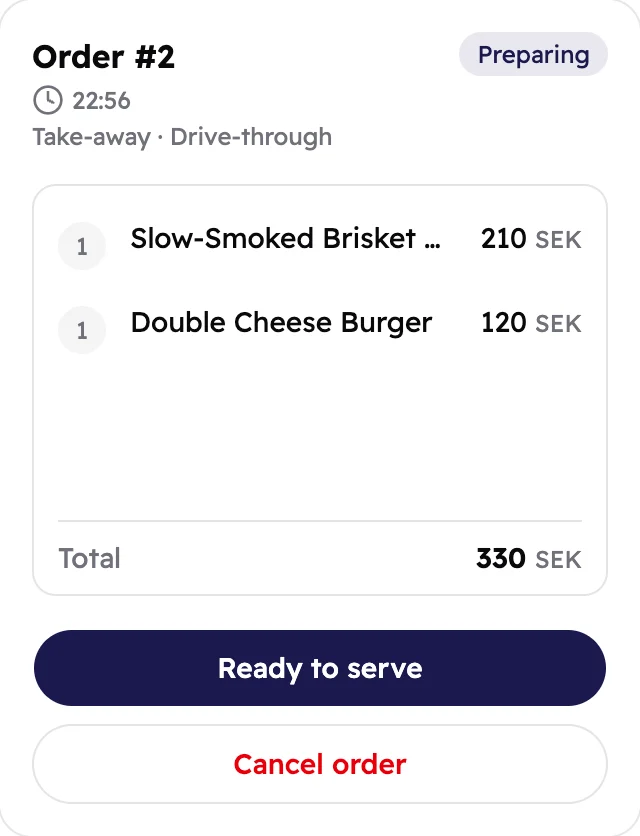
Confirm Reject - Preparing
Kitchen or barista: makes it.
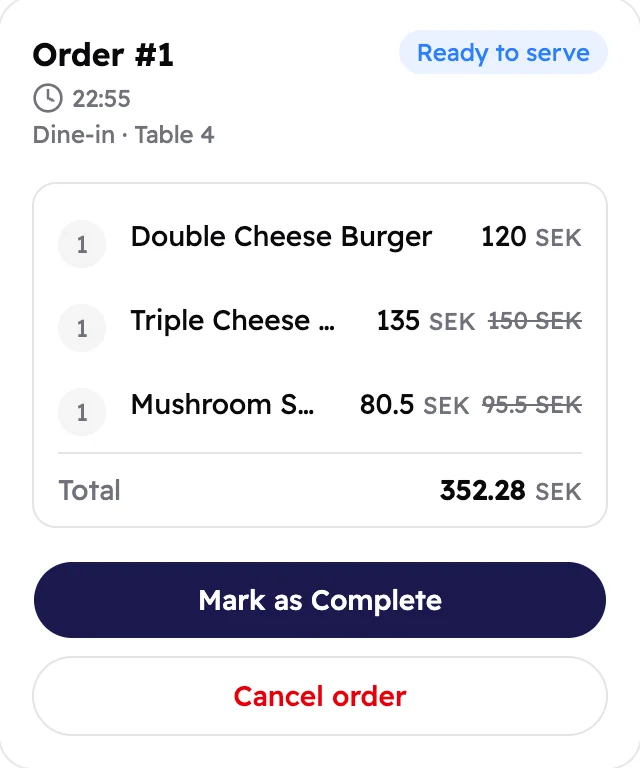
Ready to serve Cancel order - Ready to serve
Waiter or counter: hands it over.
Mark as Complete Cancel order - Completed
The guest has it. Nothing left to do.
Small team? One person can switch between tabs. All shows every order at once.
Read an order
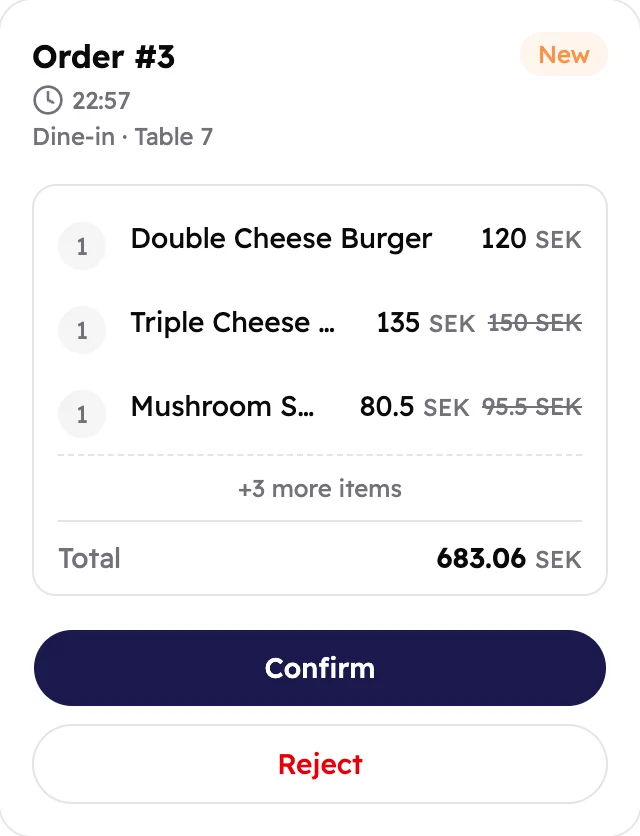 12345678
- The order number. Call it out between stations.
- When it came in.
- How the guest gets it: here, at table 7.
- Which station it's at.
- What to make, and how many of each.
- Long orders show the first three items. Tap the card to see them all.
- What the guest pays, with any service charge and tax.
- What to do next.
Tap a card to see everything in it:
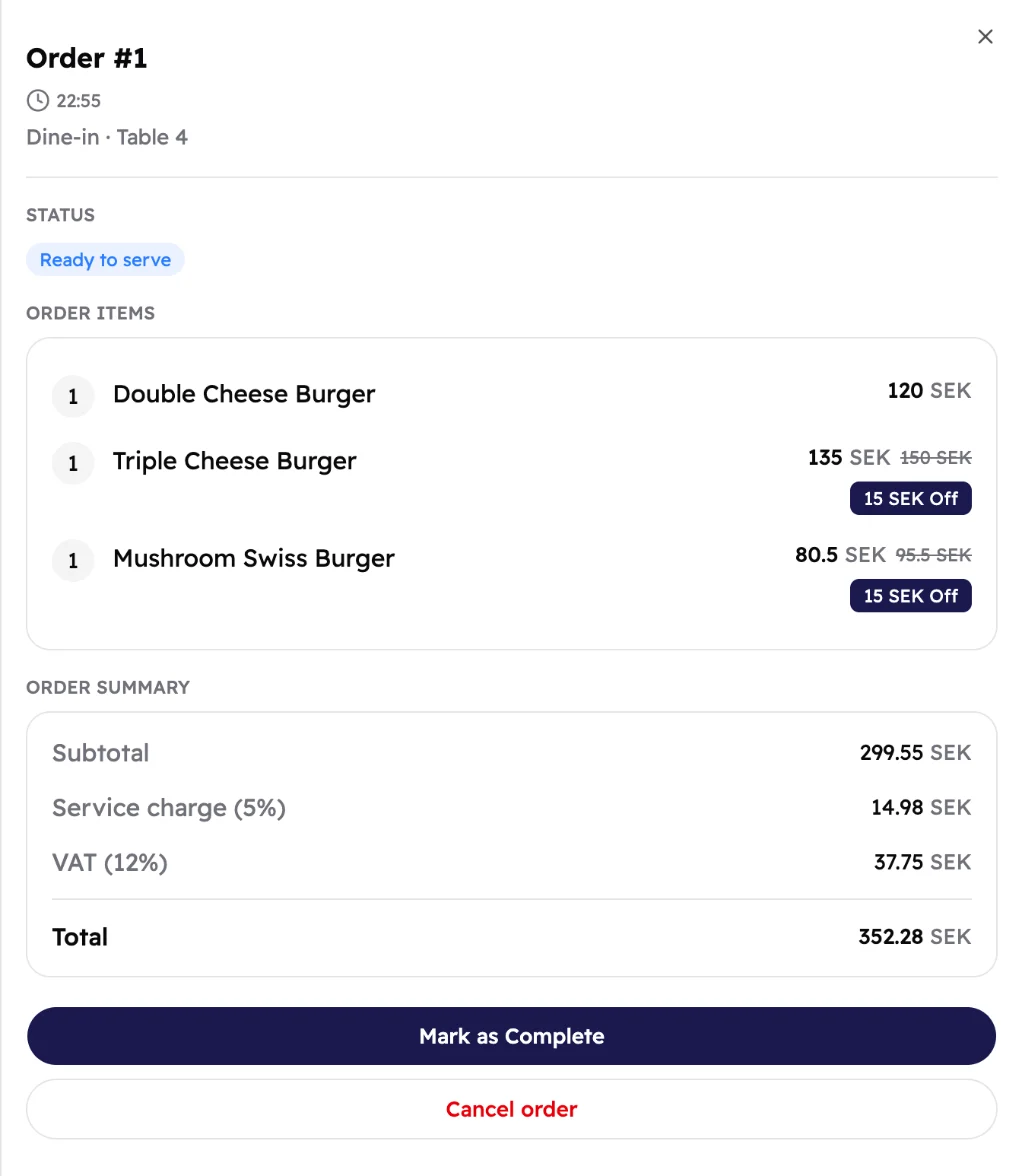 1234
1234- Which station it's at.
- Discounts the guest got.
- The bill: items, service charge, tax and total.
- The same buttons as on the card.
Handle an order
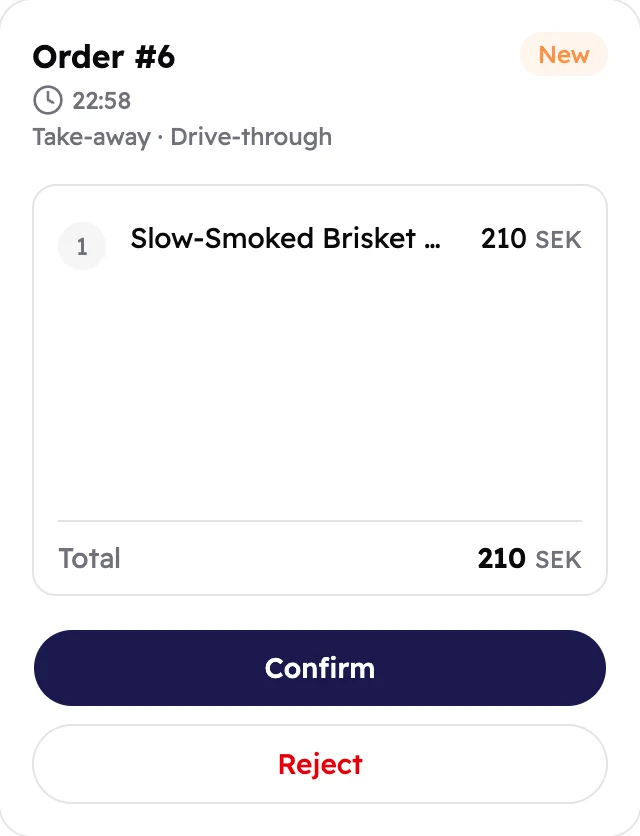
New
New orders appear on their own, with a sound. Check the items and how the guest gets it, then:
- Tap Confirm to send it to the kitchen. It moves to Preparing.
- Tap Reject if you can't make it, for example when a dish has run out. Tap Reject again to be sure.
Preparing
The kitchen's to-do list. An order only shows here once someone confirms it.
- Tap Ready to serve when it's ready. It moves to Ready to serve.
- Tap Cancel order if you can no longer make it, then confirm.
Ready to serve
Check how the guest gets it: take it to their table, call out the number at the counter, or hand it through the drive-through window.
- Tap Mark as Complete once the guest has it. It moves to Completed.
Completed and Cancelled
These keep your finished orders. A rejected order is marked Rejected and also sits under Cancelled.
Find an order
- Tap Search order # and type the order number. Numbers start again every day, so check the date next to each result.
- Orders shows the last 24 hours. Looking for an older one? Change Last 24 hours to Last 7 days, Last 30 days, Last 90 days or All time.
- More than one branch? Tap the branch name to switch.