
Team
Menus+Invite your staff, and give each person only what their job needs.
Where to find it:
- Sidebar
- Team
Roles: who does what
A role decides what someone can do. One person can have more than one role, like a manager who is both Menu Crafter and Menu Publisher.
- Owner Everything, including the team. There's one owner: whoever opened the account. Good for: the person who runs the business.
- Admin Everything the owner does, except changing or removing other admins. Good for: managers.
- Menu Crafter Sections, items, prices and discounts. Good for: chefs and managers.
- Menu Designer How your menus look: template, colors, photos and your logo. Good for: whoever looks after your social media.
- Menu Publisher Puts menus live and publishes changes. Good for: whoever signs off the menu.
- SEO Specialist How your menu shows up on Google, and when its link is shared. Good for: whoever does your marketing.
- Order Handler The Orders page: confirms orders and moves them along. Good for: cashiers, kitchen staff and waiters.
The screen
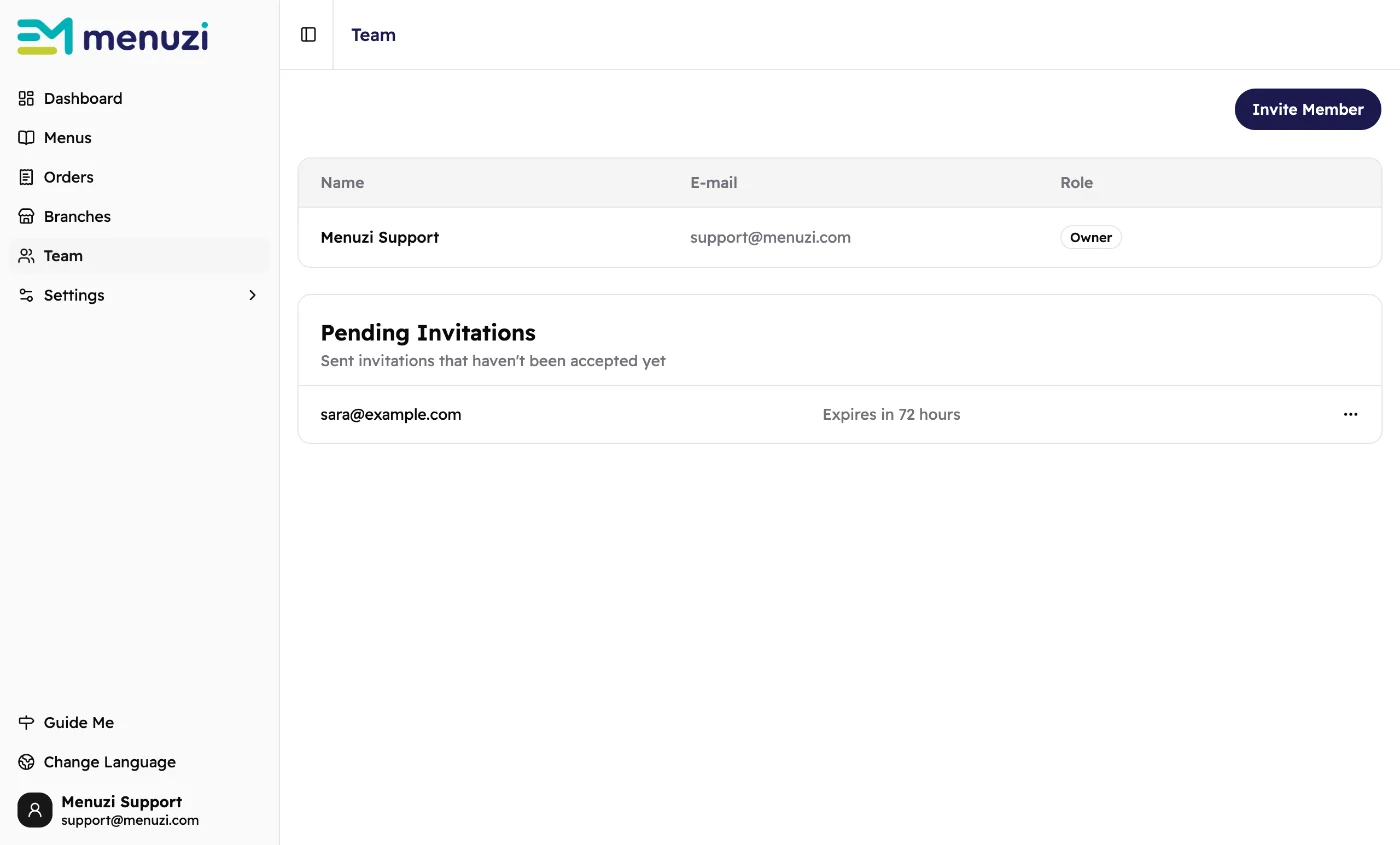 12345
12345- Invite Member adds someone.
- Everyone on your team.
- Their roles.
- Pending Invitations: people you've invited who haven't joined yet.
- Tap ⋯ to cancel an invitation.
Invite someone
- Tap Invite Member.
- Type their E-mail.
- Under Roles & Permissions, tick one or more roles.
- Tap Send invitation.
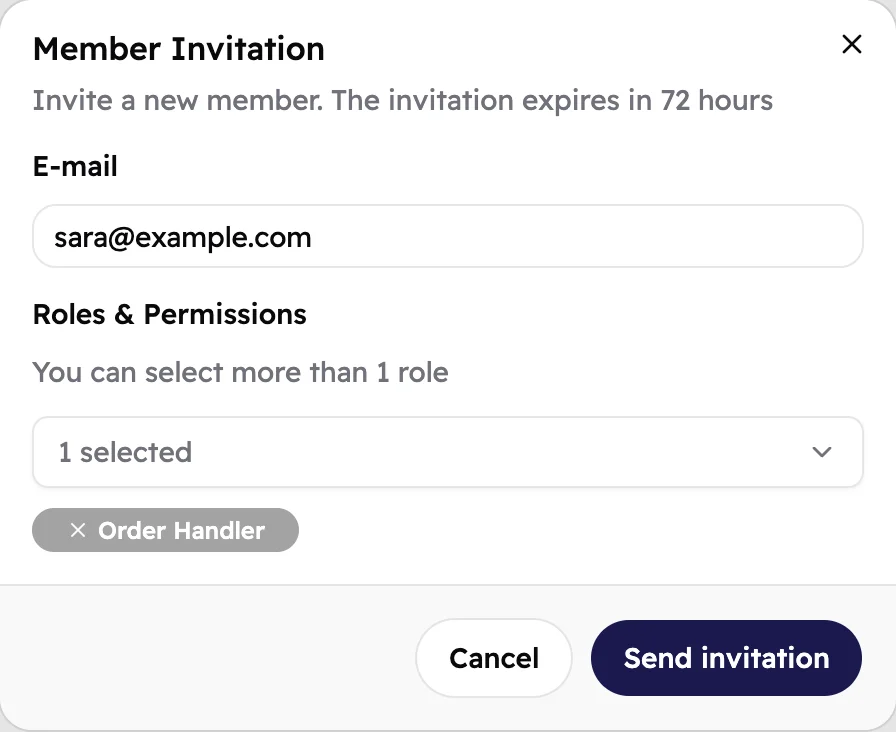 1234
1234- Their e-mail address.
- Opens the list of roles, each with a short description.
- The roles you picked. Tap × to take one away.
- Sends the invitation.
Menuzi e-mails them an invitation. You also get a link you can send yourself, for example on WhatsApp:
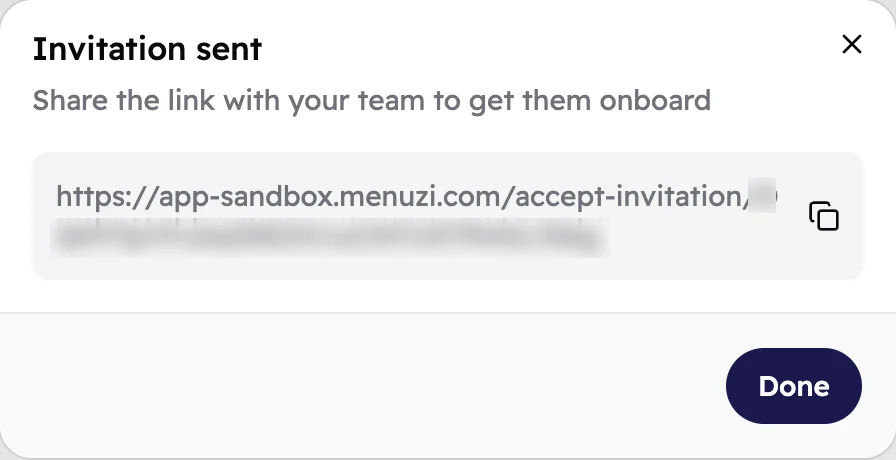 12
12- Their personal invitation link.
- Copies the link.
Send them Join a team too, so they know what to do.
Invitations
- An invitation works for 72 hours.
- To stop one, tap ⋯ next to it, then Cancel Invitation.
- Didn't join in time? Invite them again. The old invitation stays in the list, marked as expired.
- You can't invite an e-mail that already has a Menuzi account. Ask them for another e-mail address.
Change a role or remove someone
- Tap ⋯ on their row.
- Tap Change role, tick the roles, then Apply. Or tap Remove member and confirm.
Removing someone takes away their access straight away. You can invite them again later.
- Nobody can change their own roles or remove themselves.
- The owner can't be changed or removed.
- Only the owner can change or remove an admin.
Good to know
A padlock on a button means your role doesn't include it: ask the owner or an admin. A crown means
your plan doesn't include it.
Each e-mail address can belong to one business only.
On Free and Menus Lite, Invite Member shows a crown. Tap it
to see your options.