
Turn on ordering
Orders+Let guests order from your menu at a branch: at the table, at the counter or from their car.
Where to find it:
- Branches
- Your branch
- Ordering
Before you start
- Publish the menu guests will order from. See Publish.
- Only the owner and admins can change ordering.
Turn on ordering
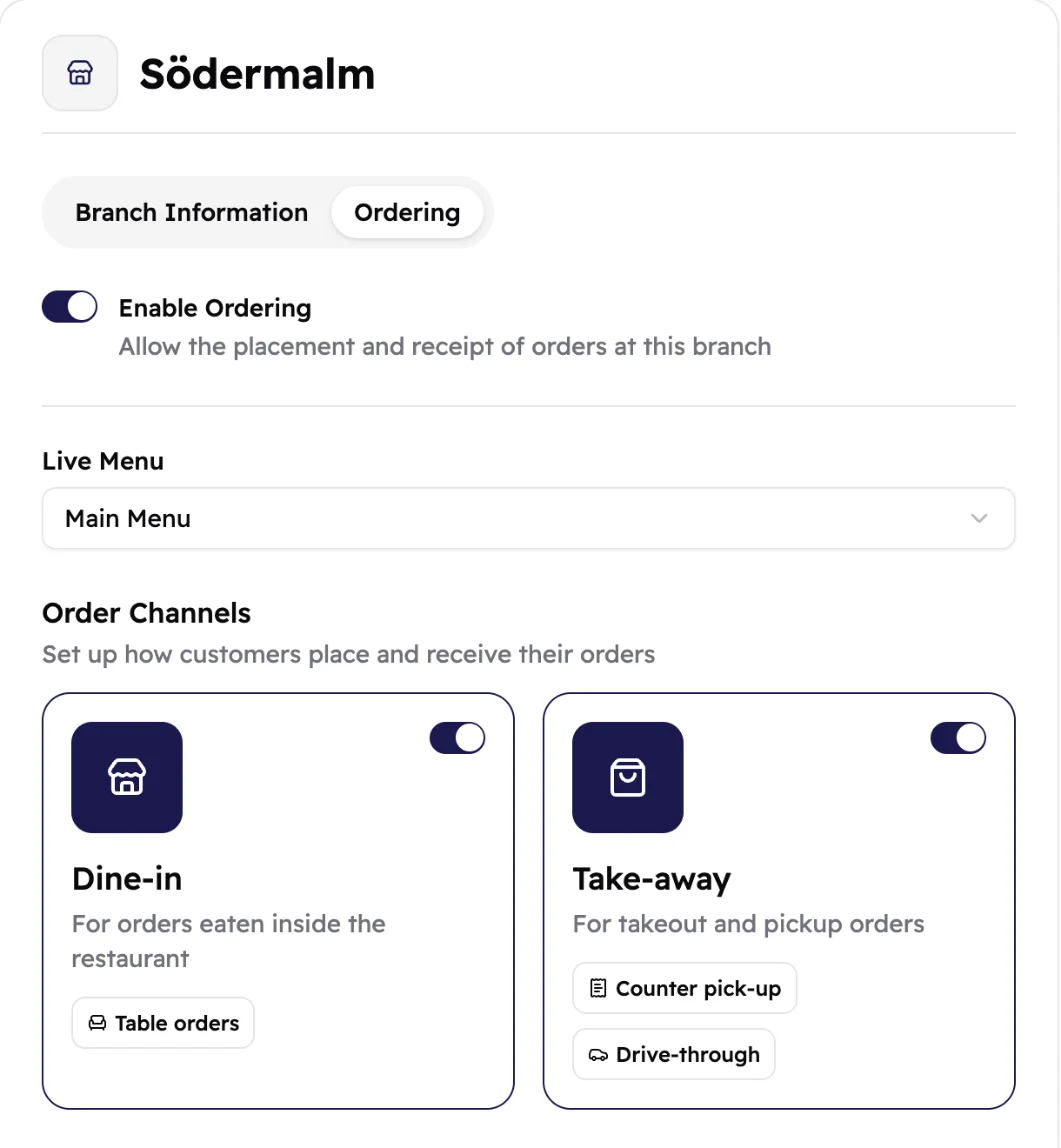
- In Branches, tap the branch, then Ordering.
- Turn on Enable Ordering.
- Under Live Menu, pick the menu guests order from.
- Under Order Channels, turn on Dine-in, Take-away or both. Pick how in the window that opens.
- Tap Save changes at the bottom of the page.
 1234
1234- Turns ordering on or off for this branch.
- The menu guests order from.
- Guests eat at your place. The badge shows how they get their food.
- Guests take it with them.
How guests get their food
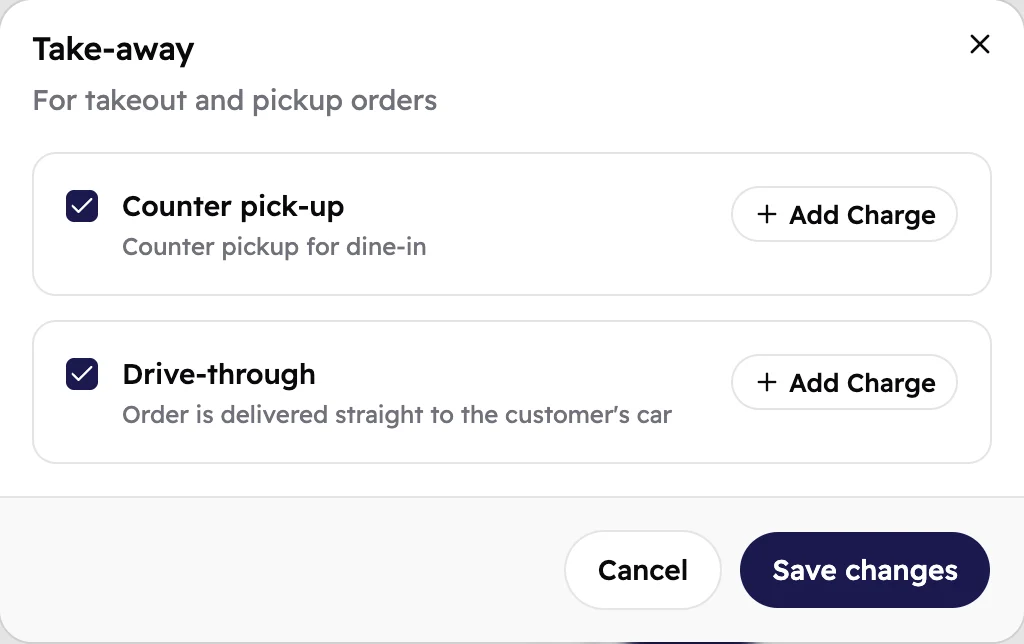
Dine-in has one way to serve: either Table orders or Counter pick-up. Take-away can have both Counter pick-up and Drive-through.
 12
12- Guests collect their order at the counter.
- Guests order from their car and collect it at your window.
Each way has its own name in each place. Here's how it reads for guests and for your team:
- You turn on Dine-in · Table orders Guests tap Dine-In: Order and eat at your table Your team sees Dine-in · Table 4
- You turn on Dine-in · Counter pick-up Guests tap Dine-In: Pick up in person Your team sees Dine-in · Self pick-up
- You turn on Take-away · Counter pick-up Guests tap Pick-up: Pick up from restaurant Your team sees Take-away · Self pick-up
- You turn on Take-away · Drive-through Guests tap Drive-through: Order from your car Your team sees Take-away · Drive-through
Guests type their own table number. There's no list of tables to set up. See How guests order.
Add a service charge
Charge a little extra for a way of serving, like table service:
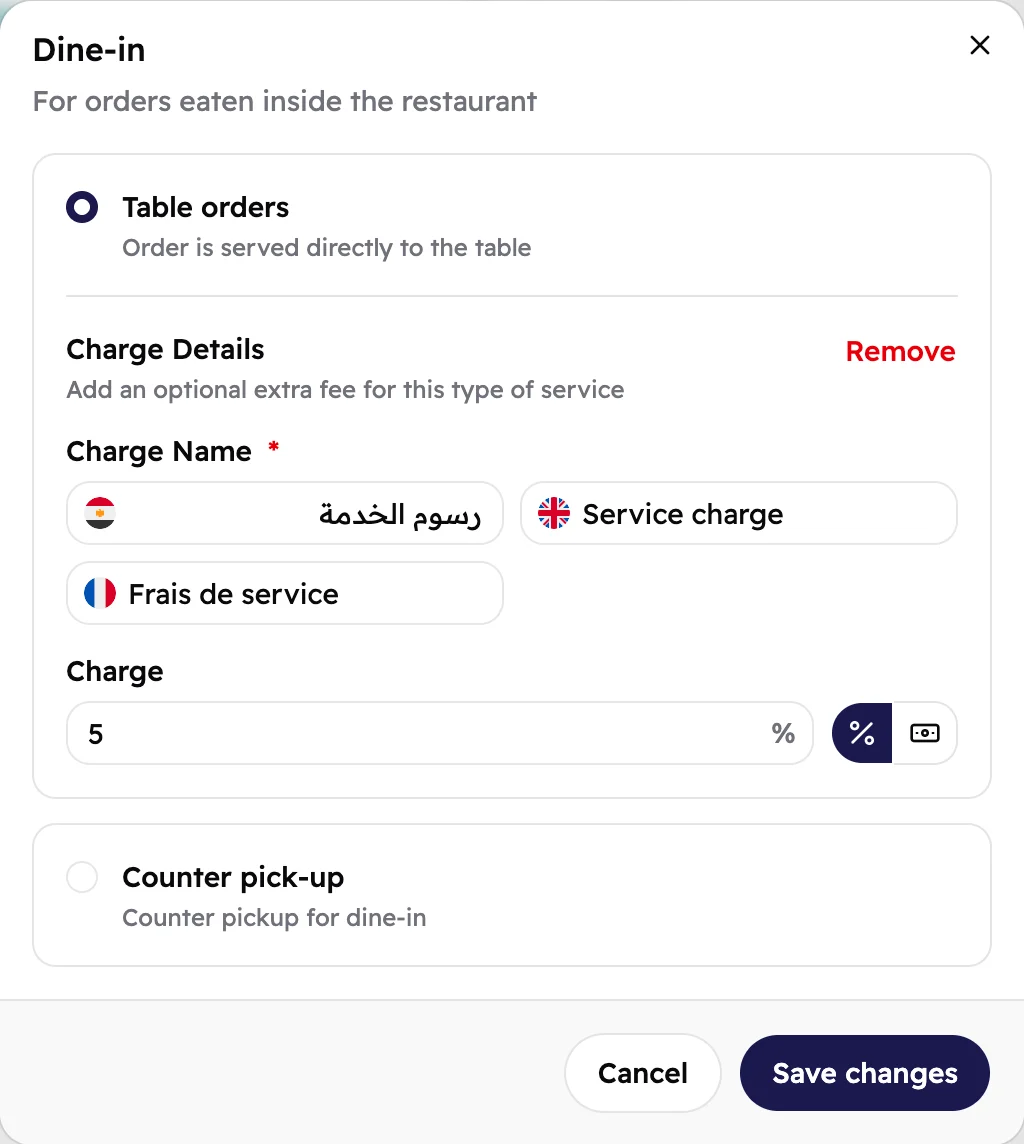
- In the window, tap Add Charge next to the way you picked.
- Give it a Charge Name in each menu language.
- Type the Charge, then pick a percentage or a fixed amount.
- Tap Save changes in the window, then again at the bottom of the page.
 12345
12345- The way you serve dine-in guests. Pick one.
- The charge's name, in each menu language. Guests see it on their bill.
- A percentage of the order, or a fixed amount.
- The other way to serve dine-in guests.
- Keeps your choice. Then save the page too.
Add tax
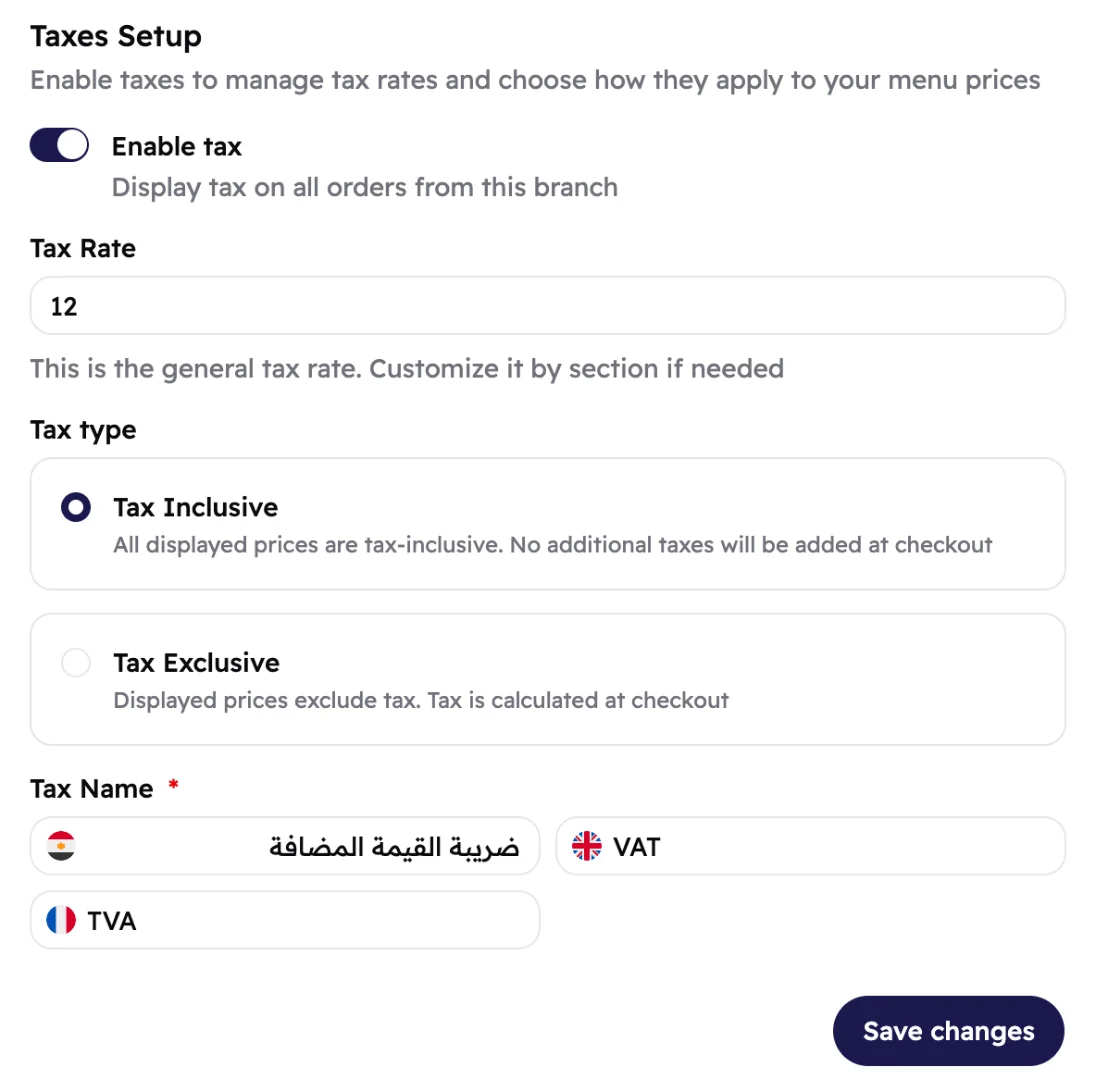
- Under Taxes Setup, turn on Enable tax.
- Type the Tax Rate.
- Pick Tax Inclusive if your menu prices already include tax, or Tax Exclusive if tax is added on top.
- Give it a Tax Name, like VAT, in each language.
- Tap Save changes.
 123456
- Adds tax to every order from this branch.
- One rate for the whole branch.
- Your menu prices already include tax.
- Tax is added on top of your menu prices.
- What guests see on their bill, in each language.
- Saves the whole Ordering tab.
Menu prices already include tax? Pick Tax Inclusive. Guests then
pay your menu prices, plus any service charge.
Good to know
Changes reach guests within a few moments. You don't need to publish the menu again.
Kitchen closing early? Turn off Enable Ordering and tap Save changes. Turn it back on when you're ready.
Orders from this branch arrive on the Orders page.