
Design
Design your menu to match your brand: template, logo, fonts and colors. Every change shows live, exactly as guests will see it.
- Menus
- Your menu
- Design
Brand your menu
Design never changes what's on your menu; that's Craft. Here you decide how it looks. You pick on the left, and the phone on the right shows exactly what guests will see.
The screen
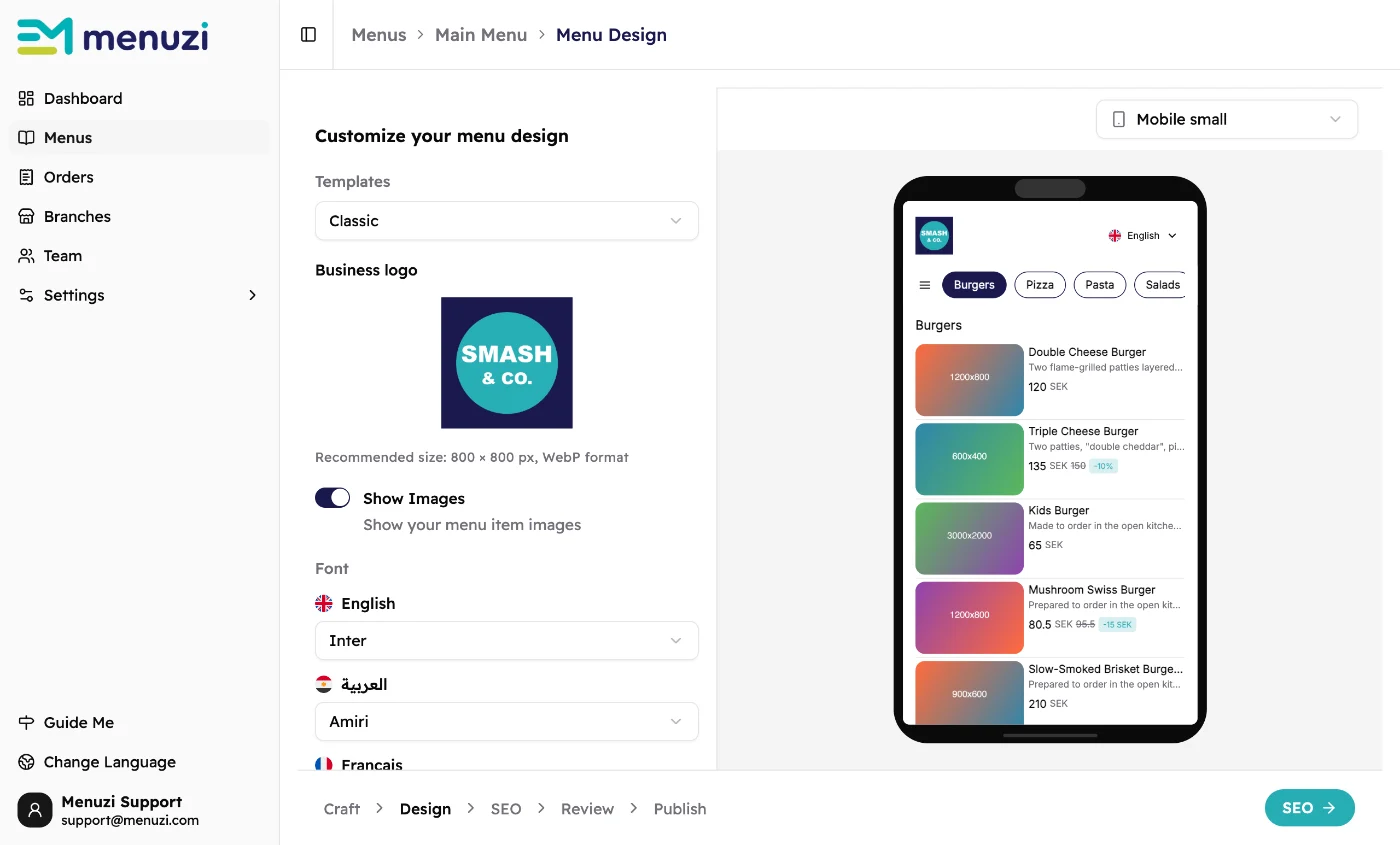 1234567
- Templates: the layout of your menu. See Templates.
- Business logo: shown at the top of your menu.
- A switch that depends on the template. On Classic, Show Images turns item photos on or off.
- Font: one for each menu language.
- Preview on a small or large phone, a tablet or a computer.
- The live preview. Tap an item's photo to add one. See Item photos.
- SEO saves your design and takes you to the next step.
Add your logo
Drop a picture onto Business logo, or tap browse files. A square picture works best, 800 × 800 pixels. Your logo is shared by all your menus, so change it once and every menu updates.
Pick your colors
Scroll down to Brand colors. Each color says what it paints, like the background, buttons or discount badges. Tap one to change it: drag in the color picker, or type the color code from your brand guide.
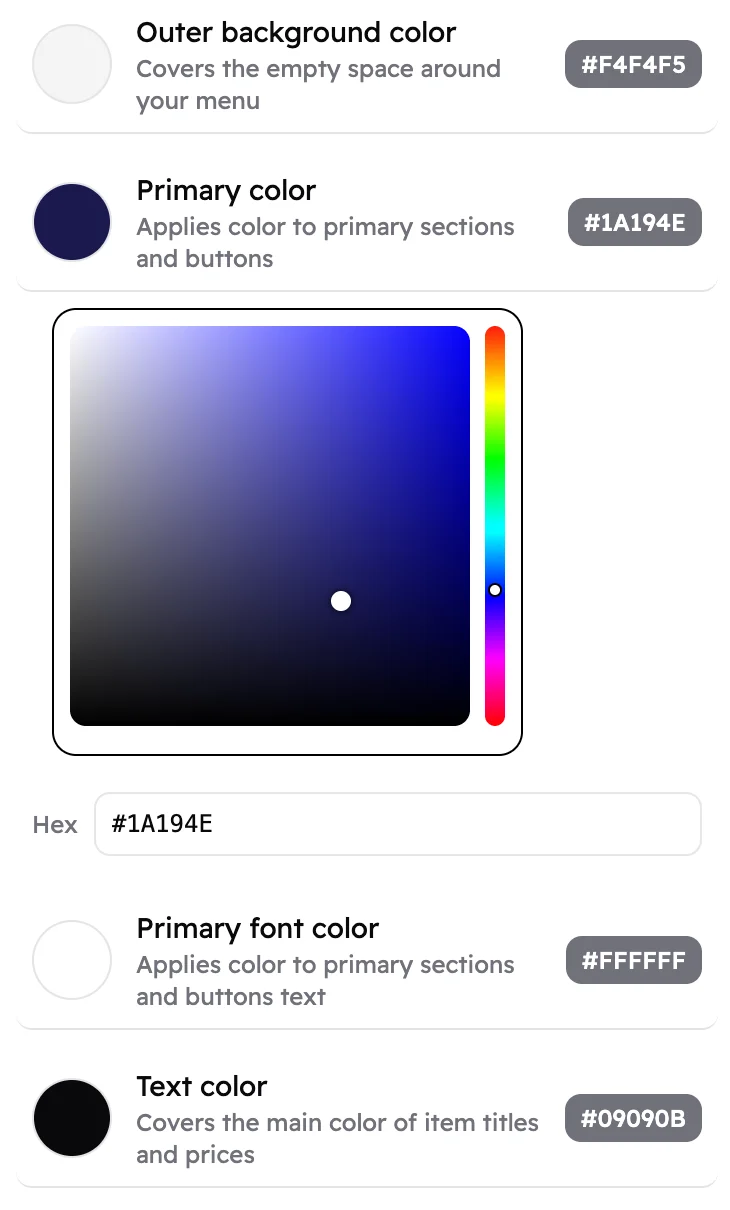 1234
1234- A color and what it paints. Tap it to open the picker.
- Drag to choose the shade.
- Or type the exact color code, like #1A194E.
- The color in use right now.
The list of colors depends on the template, because each template paints different parts.
Banner, links and reset
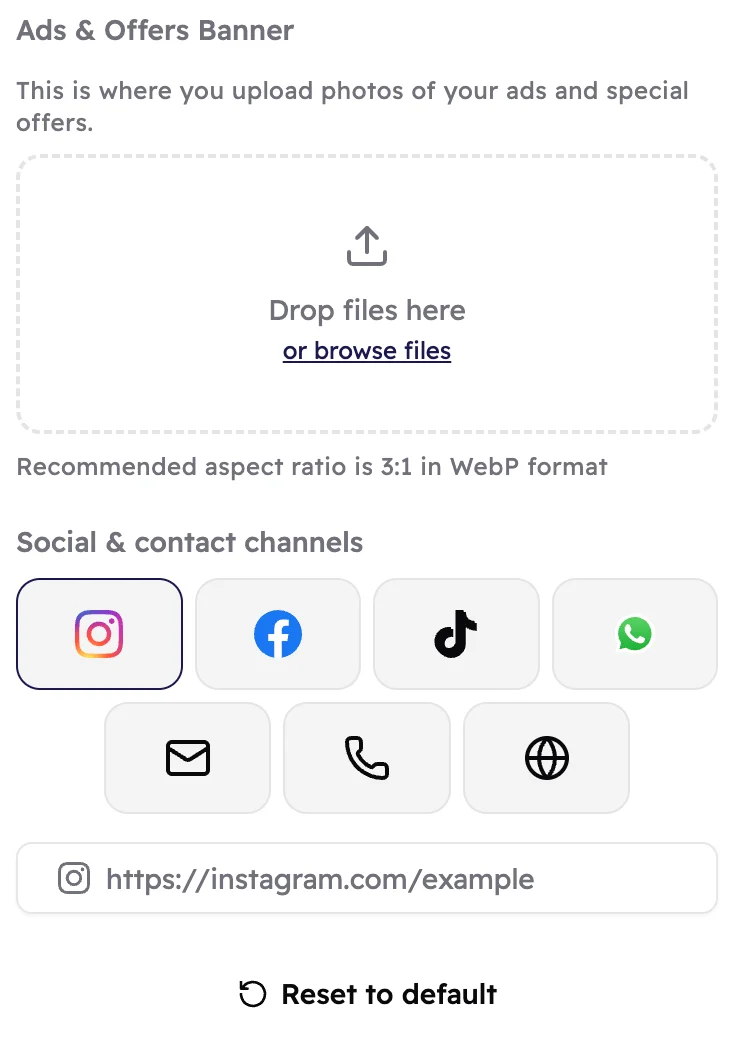 1234
1234- Ads & Offers Banner Menus Lite: a promotion at the top of your menu. See Ads & offers banner.
- Social & contact channels Menus Lite. See Social and contact links.
- Where you type the link or number for the channel you picked.
- Reset to default puts the colors, fonts and the template's switch back to how they started. Your logo, banner and links stay.