
Branches
Menus+Each of your places is a branch, with its own name and opening hours. Every order arrives at a branch.
- Sidebar
- Branches
One account, all your branches
Your account holds every branch of your restaurant. It starts with one branch called "Default". Rename it to your location, then add the rest of your branches.
- Södermalm Every day, open late on Fridays and Saturdays Takes orders from Main Menu
- Vasastan Monday to Saturday, closed on Sundays Not taking orders
Each branch has its own live menu, and decides for itself whether it takes orders. See Turn on ordering.
The screen
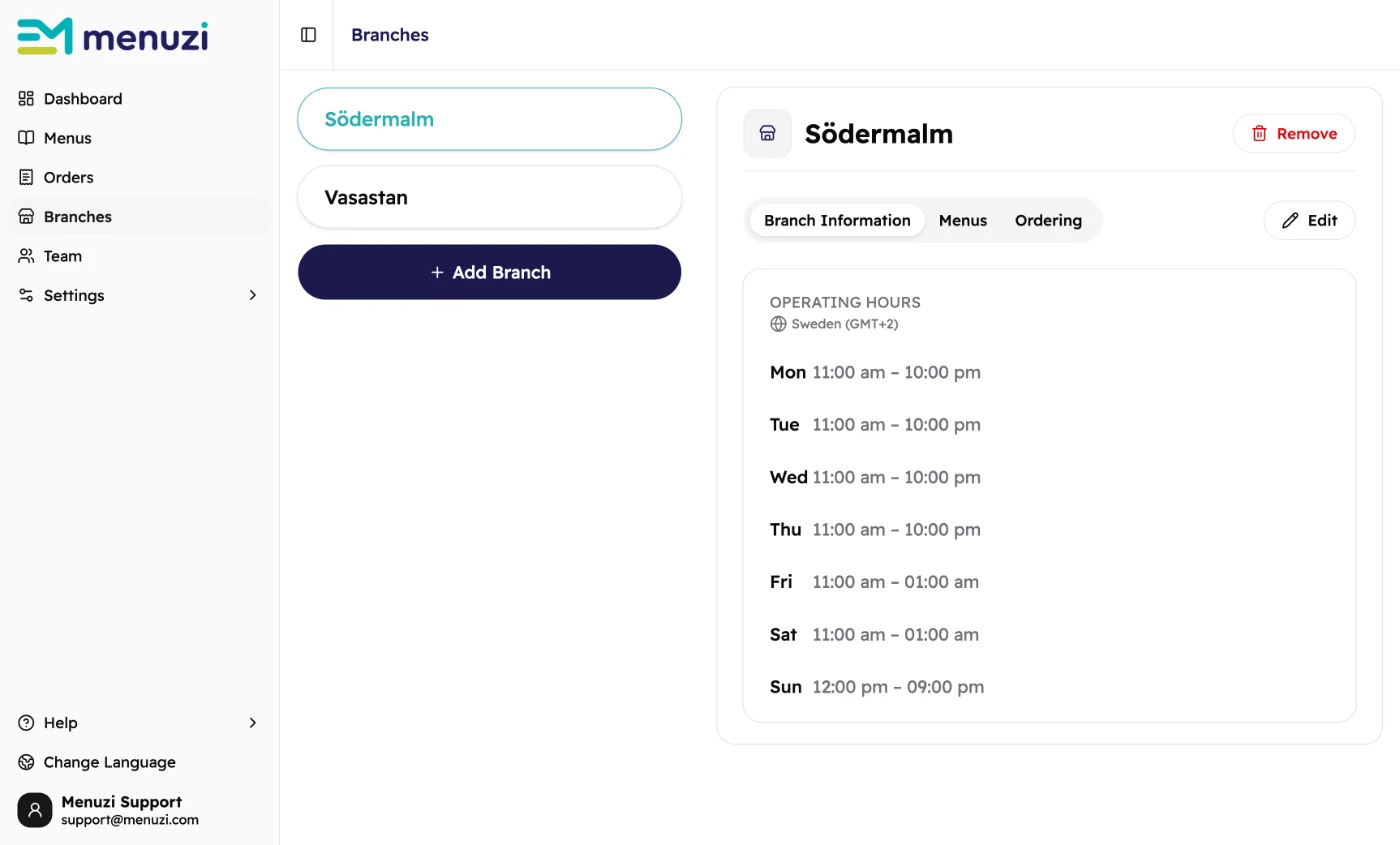 123456
- Your branches. Tap one to see it.
- Add Branch adds another one.
- Remove removes the branch. It only shows when you have more than one.
- Branch Information shows the opening hours. Menus shows the menu and what's in stock. Ordering sets up ordering.
- Edit changes the name and the hours.
- The opening hours, in your country's time.
Add a branch
- Tap Add Branch.
- Type the Branch Name.
- Under Operating Days, tap the days you're closed to switch them off.
- Set the Opening hours and Closing hours.
- Tap Add Branch at the bottom.
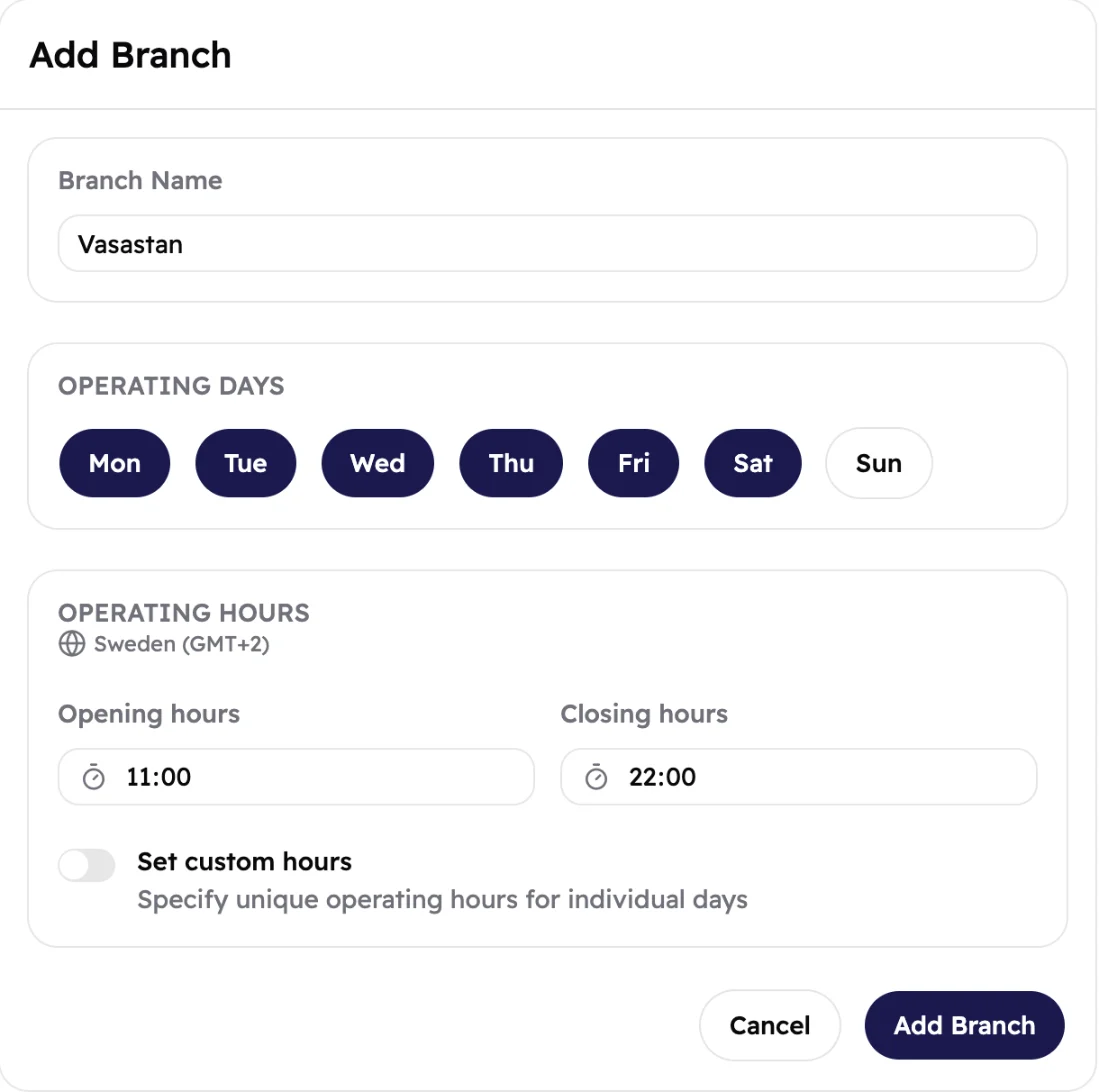 12345
12345- The branch's name, as your team and guests know it.
- Dark days are open. Tap a day to switch it.
- One set of hours for every open day.
- Set custom hours gives each day its own hours.
- Saves the new branch.
Free and Menus Lite come with one branch. On Menus+ and Orders+ you choose how many branches you pay for. Once you've used them all, Add Branch shows a crown. Tap it to see your options.
Opening hours
Open longer at the weekend? Give each day its own hours:
- Tap the branch, then Edit.
- Turn on Set custom hours.
- Change the hours of any day.
- Tap Save changes.
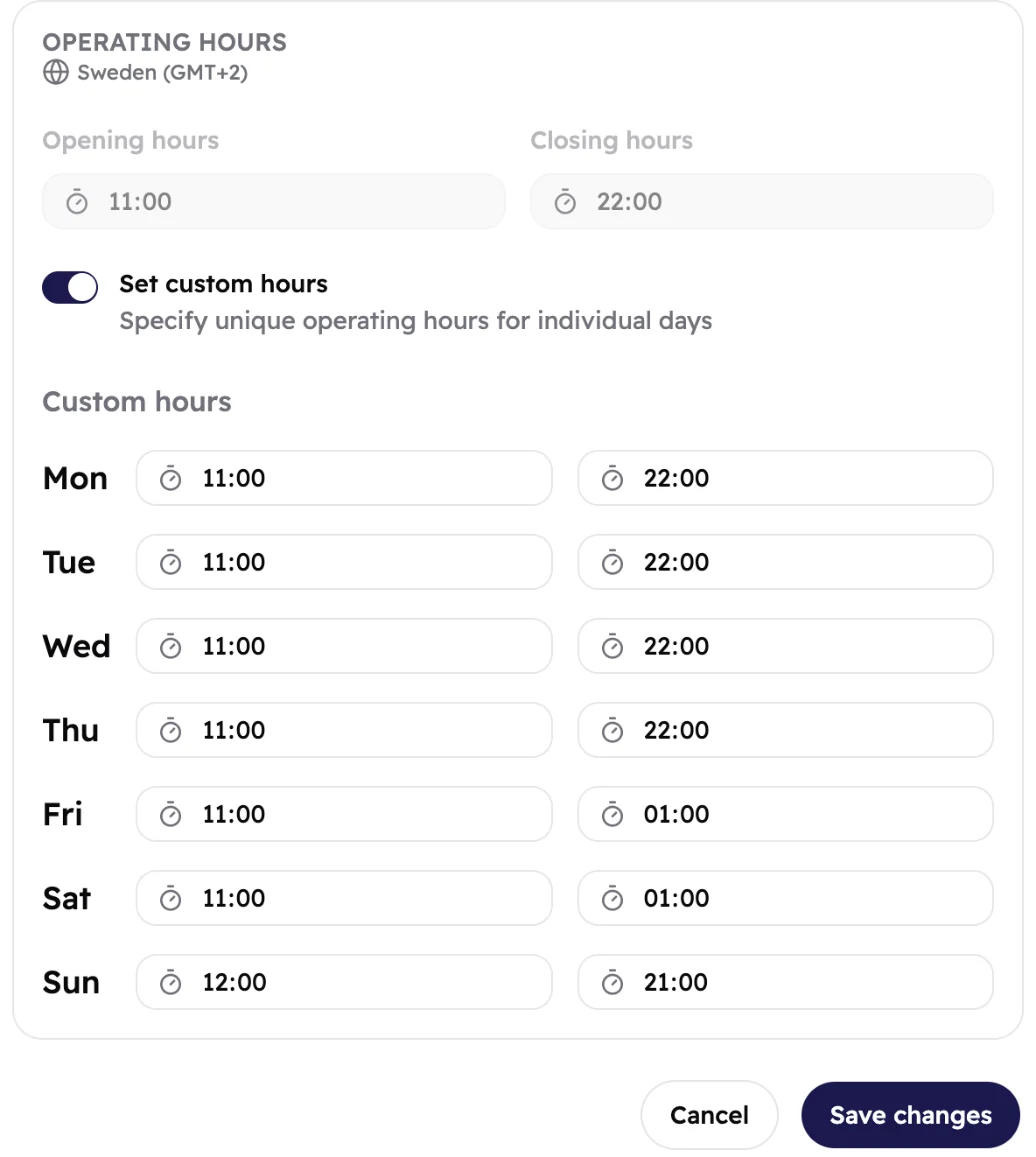 123
123- Switches on a row for each open day.
- Each day gets one opening time and one closing time.
- Closing after midnight? Type the time, like 01:00. Menuzi reads it as the next morning.
Hours follow your country's clock, shown under Operating Hours. All your branches share it.
The menu at this branch
Each branch shows guests one menu: its live menu. To change it:
- Tap the branch, then Menus.
- Under Live Menu, pick a menu.
- Tap Change Menu to confirm.
Guests at this branch see the new menu within about a minute. Go to menu opens it in Craft.
Below, you see the menu's items and whether each one is in stock at this branch. See Mark items out of stock.
Is the same menu live at more than one branch? Guests then choose their branch when they open the menu.
Remove a branch
Tap the branch, then Remove, and confirm. A removed branch can't be brought back. Your last branch can't be removed.