
Offers and discounts
Put a dish on offer by taking a percentage or an amount off its price. Guests see the new price, the old one crossed out, and a badge.
Where to find it:
- Craft
- An item
- Discount
Put an item on offer
- In Craft, tap the item.
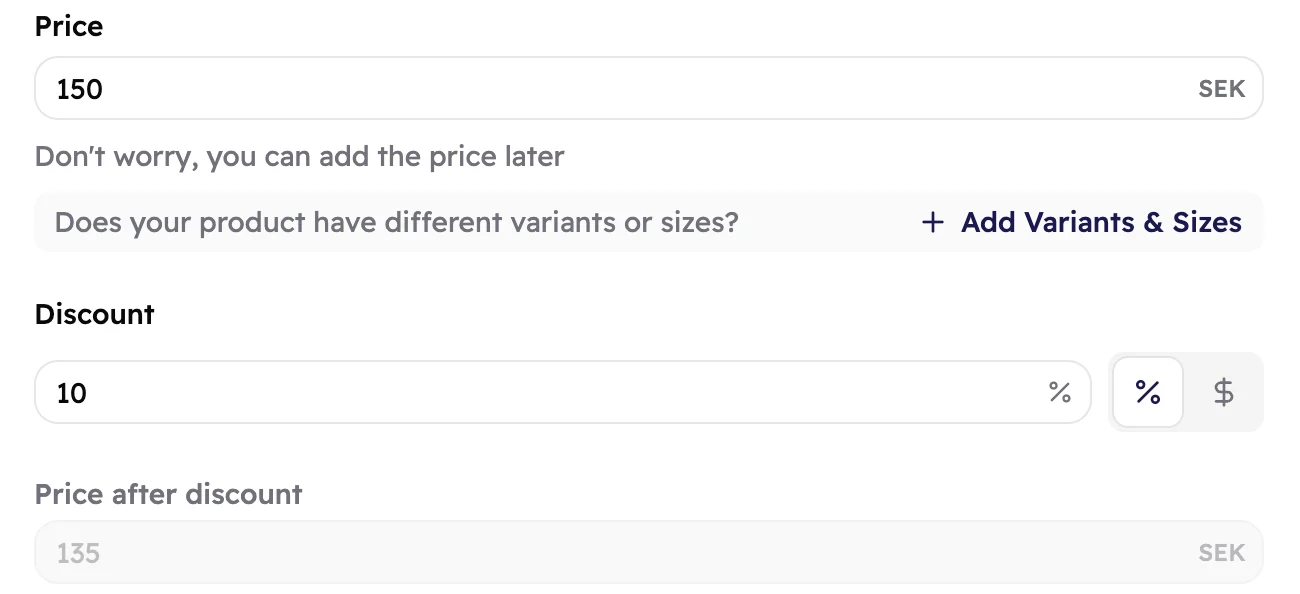
- Next to Discount, choose % to take a percentage off, or the money sign to take an amount off.
- Type the discount. Price after discount shows the new price.
- Tap Submit.
 1234
1234- The full price. The discount box stays greyed out until there is one.
- The discount: between 1 and 99 for a percentage, or any amount below the price.
- Switch between a percentage and an amount.
- The price guests pay. You can't type here; it's worked out for you.
What guests see
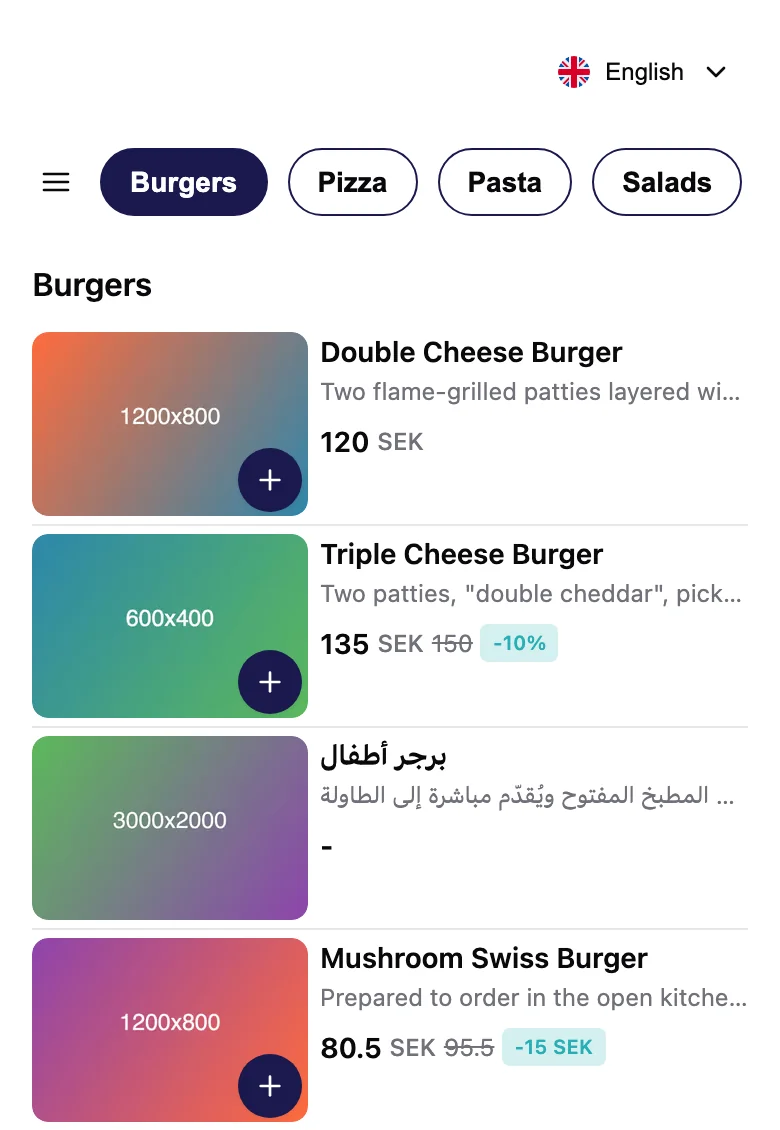
The item shows its new price, the old price crossed out, and a badge: the percentage, or the amount taken off.
 12
12- A percentage off: 150 SEK becomes 135 SEK.
- An amount off: 95.5 SEK becomes 80.5 SEK.
End an offer
Open the item, clear the Discount box and tap Submit. Then publish so guests see the full price again.
Good to know
Selling an item in sizes? Each size can have its own discount, and the item gets an Offer badge. See Sizes and variants.
Offers start and end when you publish. Change the price in the morning, publish, and guests see
the offer right away. See Publish.
Want to shout about it? Add an Ads & offers banner at the top of your menu.